
Customer Liability Waiver
This article details:
How the Customer can accept the waiver
How an Admin can accept the Customer’s waiver
How an Admin can download the Customer’s accepted waiver
There are two ways the Liability Waiver can be accepted:
By the Customer (the suggested way)
By an Admin, on behalf of a Customer (mainly used for VIP Customers)
Customer Accepts the Waiver
When a Customer first signs up for an account on your App, they will accept the Privacy Policy, the Terms and Conditions, and the Liability Waiver
Note: if your Club has multiple locations with specific waivers for different locations
Here is the Customer reviewing and accepting the Terms of Service and Privacy Policy

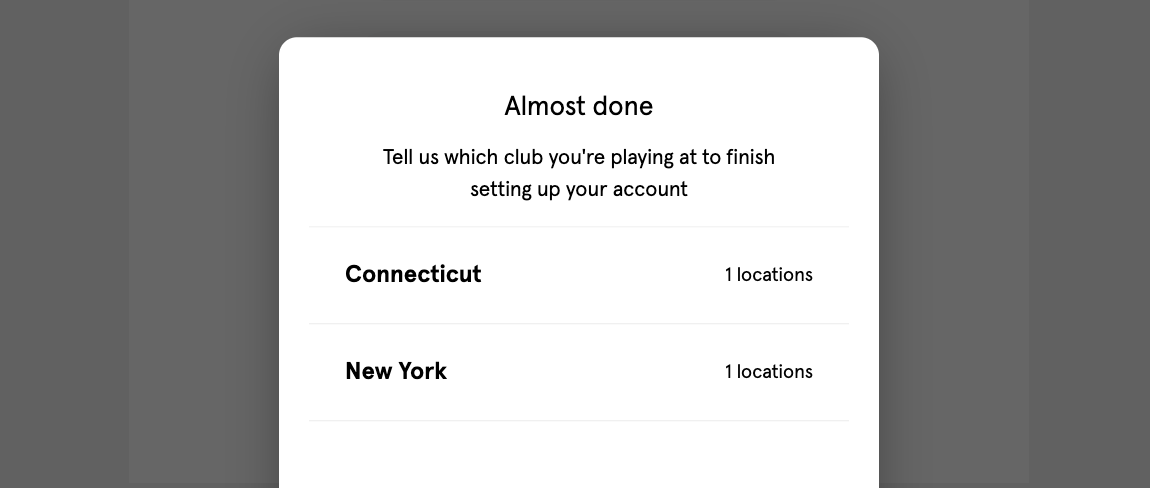
Below, the Customer chooses their location
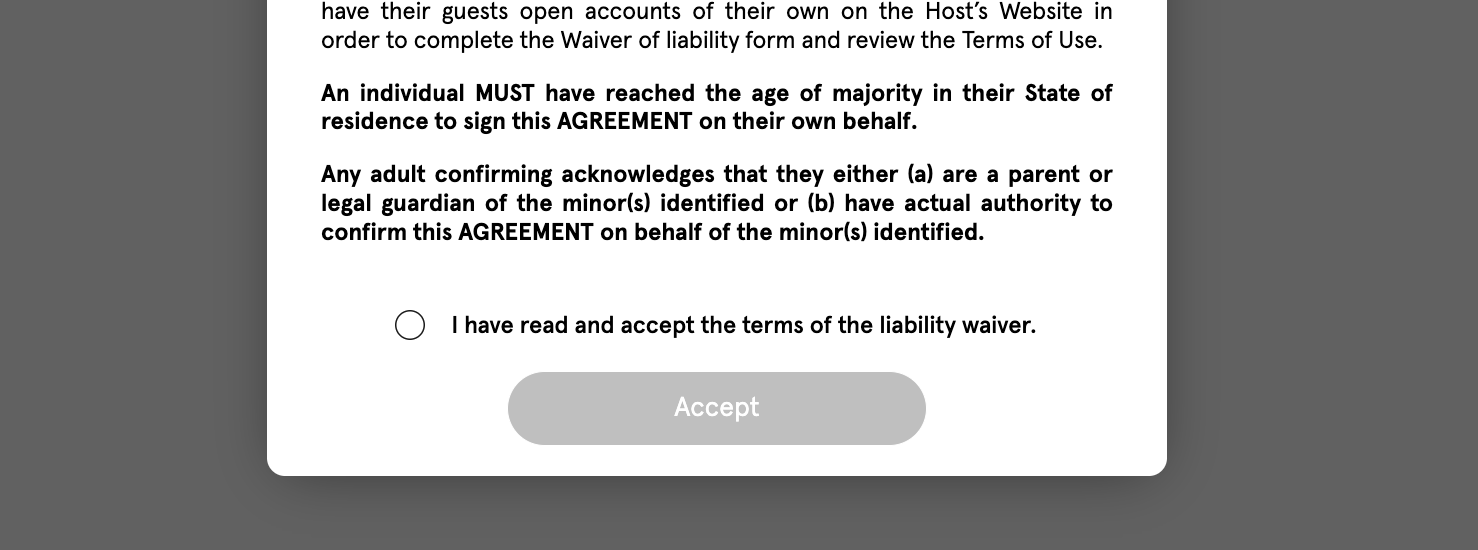
And to accept the Liability Waiver, the Customer must scroll through the waiver and click the button to “Accept,” which only becomes clickable after they have confirmed they have read the waiver
Admin Accepts the Waiver
For an Admin to accept the Liability Waiver (or Terms of Service & Privacy Policy) on behalf of a Customer, an Admin can:
Navigate and click on a Customer’s Profile in the Customer page of the Dashboard
Scroll down in the Overview tab of the side panel
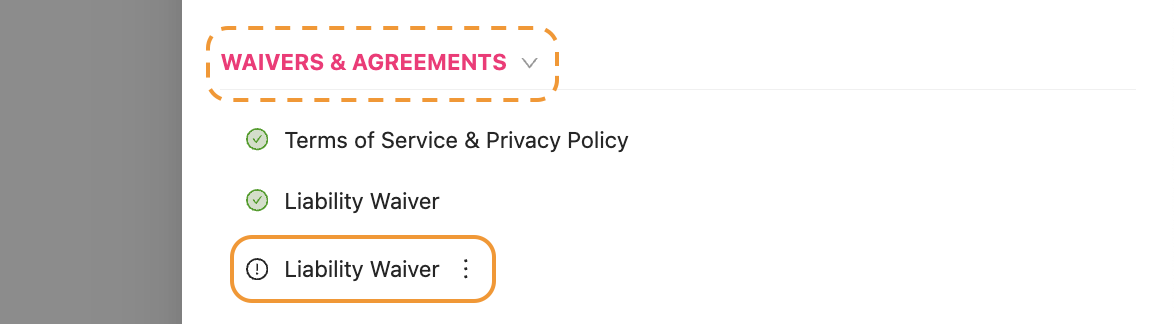
View the drawer labeled WAIVERS AND AGREEMENTS
Click on the three dots to the right of the any unconfirmed waiver
Click the button that pops up labeled “Sign on behalf of the user”
Download the Customer’s Waiver
For an Admin to download the Customer’s accepted waiver, the Admin can:
Navigate and click on a Customer’s Profile
Scroll down in the Overview tab of the side panel
View the drawer labeled WAIVERS AND AGREEMENTS
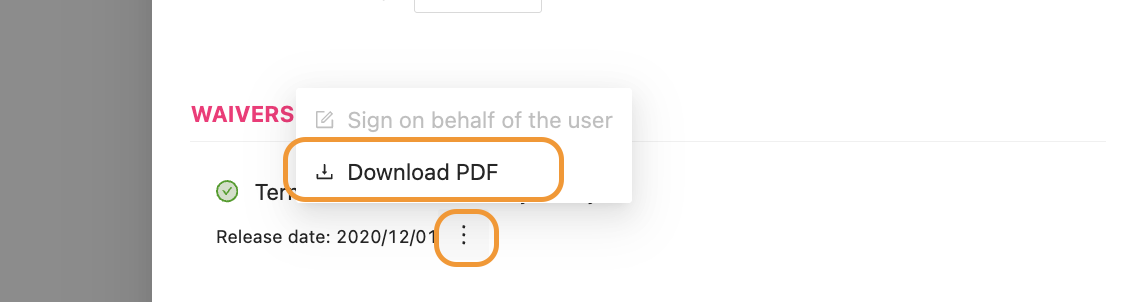
Click on the three dots to the right of the any completed waiver
Click the button that pops up labeled “Download PDF”
The PDF will then download on to the computer and the Admin can print it out or send it via email if desired.