
Shared MFA Credentials
If your Club has the Analytics+ package, and you would like to share access credentials between Owners/Partners of your Club, you can leverage the password manager 1Password
Please note: PodPlay Technologies has zero affiliation with 1Password
By leveraging the 1Password Personal plan for Families, a single seat for the Analytics+ package can be shared between 5 individuals
Once you have received an email to access the Analytics+ package in Tableau, you will be prompted to connect a multi-factor authentication (MFA/2FA)
Use your 1Password account for a Username (email) and password
Download the 1Password app on your phone
Create a Verification Code
Locate the login credentials inside 1Password for Tableau
Edit the credential
Click on “+ add more”
Choose “One-Time Password”
Click on the small QR code icon on the right side
Scan the QR code provided by Tableau to complete your MFA
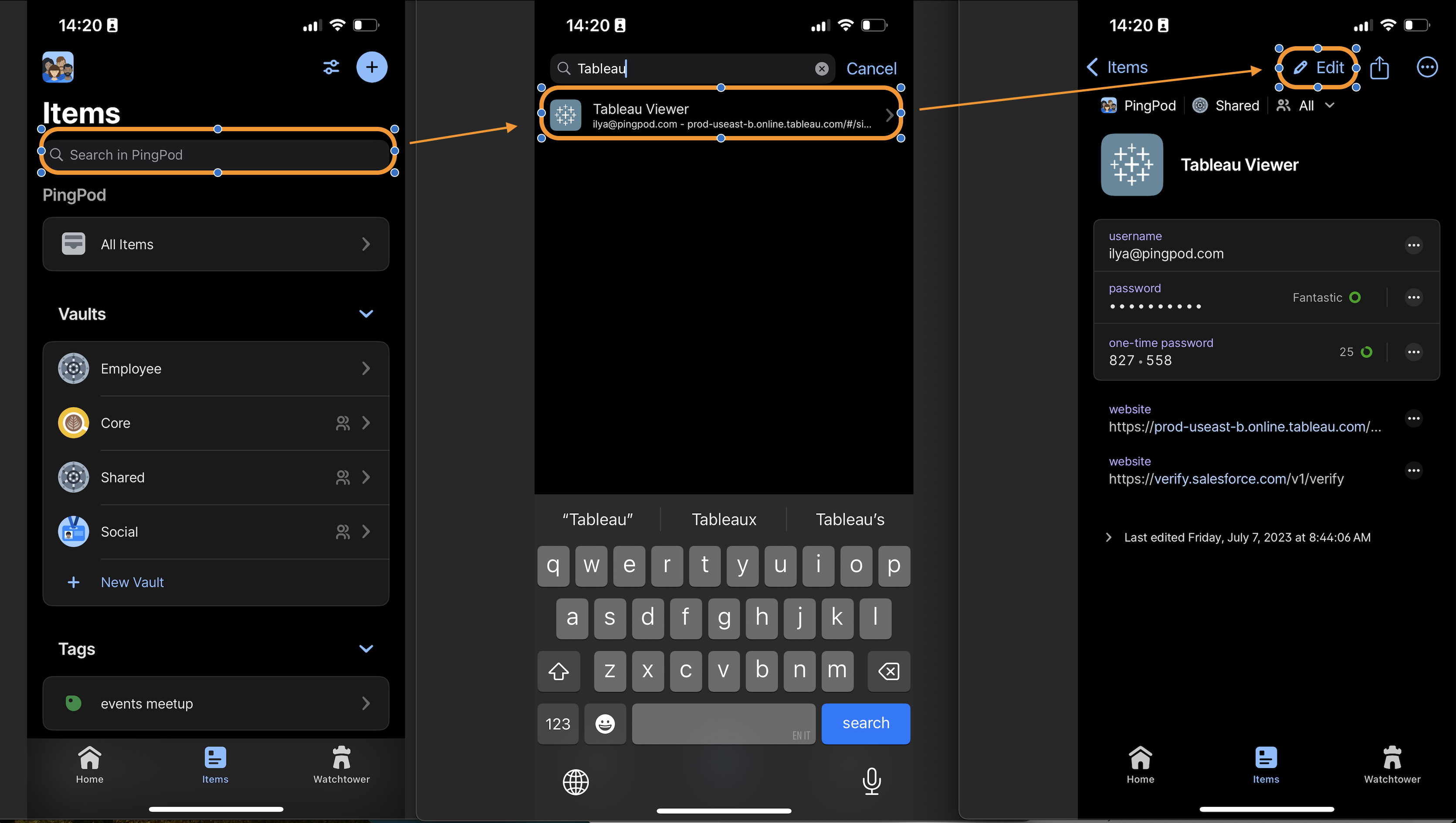
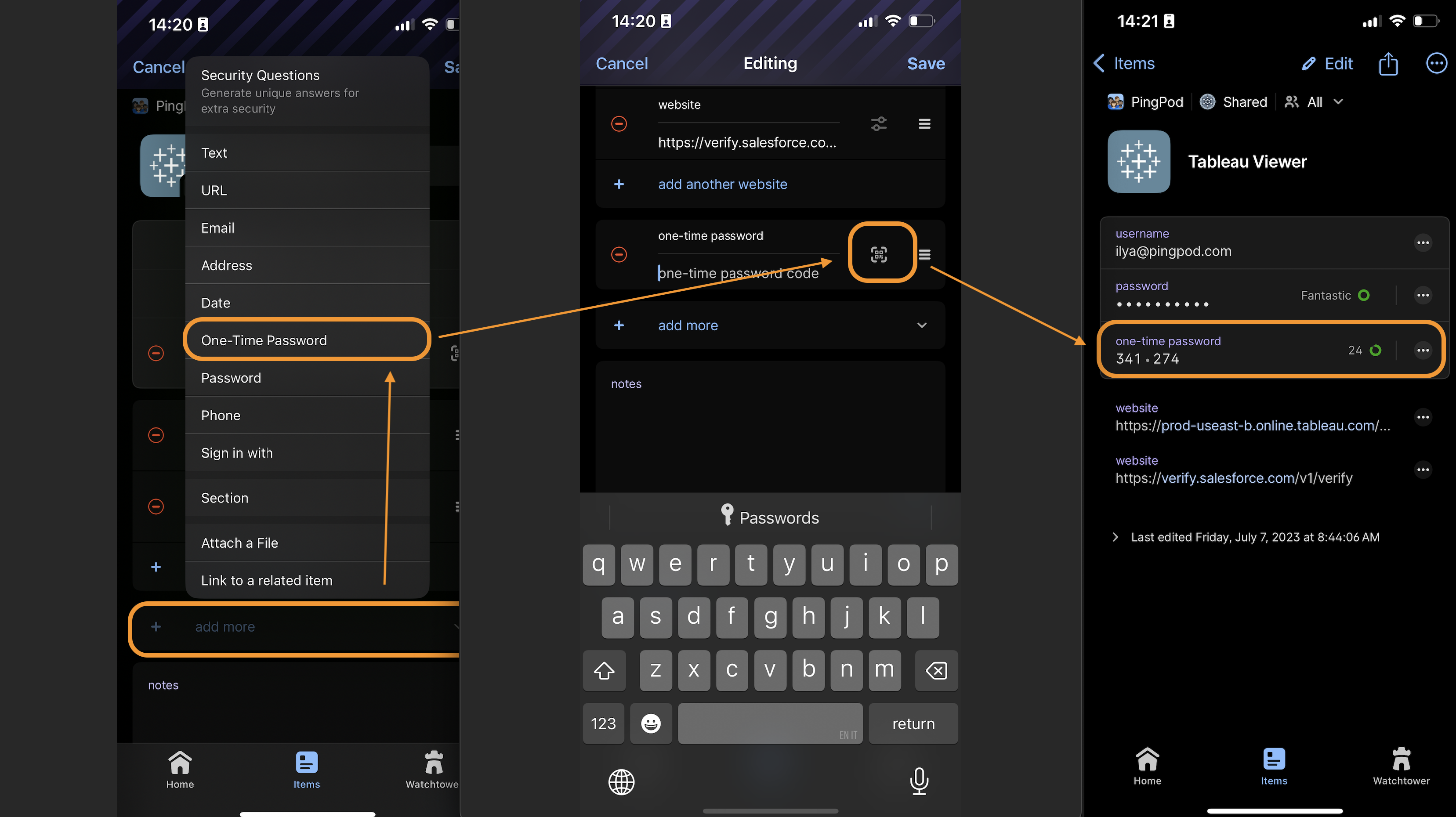
Once your 1Password account has the username (email), password, and MFA one-time password that can easily access your Analytics+ package in Tableau
Log into 1Password ON YOUR COMPUTER
Open the “Vaults” section of your 1Password account
Create a “New Vault”
Name the new vault
Locate the “People” section of your 1Password account
Invite the other people to your 1Password plan
Click on the name of this person (once they accept the invitation)
Click on the “Manage” button to edit the vaults they can access
Grant this person permission to access the new vault you created
Move the Tableau credential into the newly created vault
Click into your Private Vault
Locate the Tableau credential
Click on the three dots near the Edit button at the top of this credential
Move the credential into the new vault
Now when you or the other people connected to your 1Password account need to sign into Tableau
Ensure the 1Password browser extension or app is downloaded on your computer
Navigate to Tableau
Use the shared credential to log in