
Square Gift Cards
PLEASE NOTE: The email that Square sends out includes a QR code and barcode, which are not relevant. ONLY THE 16-DIGIT code is necessary to redeem the gift card.
You may be asked about this by Customers. Guide the Customer.
We are speaking to Square about this in an attempt to reach a UI resolution on their email sent to the Customer.
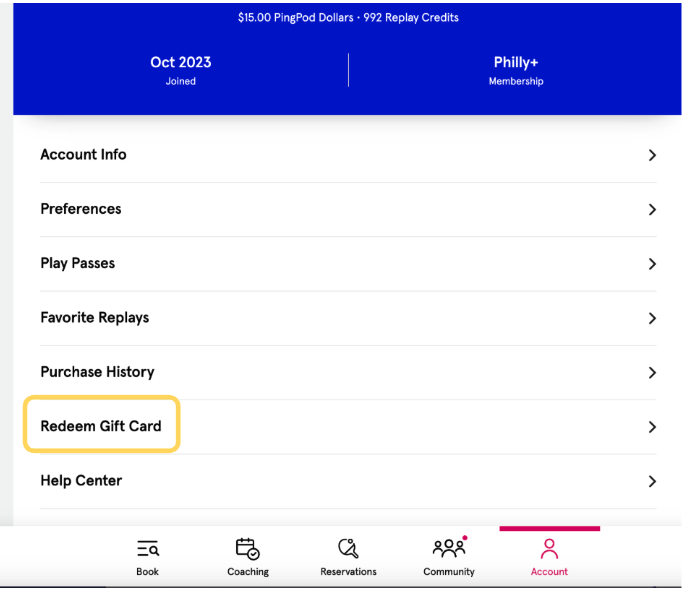
Customers can redeem Square Gift Cards by going to Account → Redeem Gift Card and entering in a 16 Digit code for a Square Gift card. Once redeemed, the gift card will automatically be converted to club credits.
To enable Square Gift Cards, first sign your club up for a free Square account by going to https://squareup.com
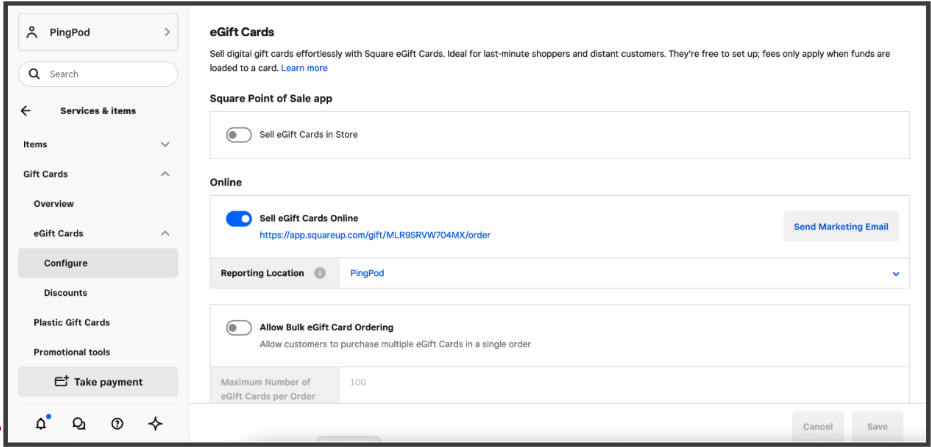
Once your Square account has been created and is active you can set up gift cards by going to: https://app.squareup.com/dashboard/gift-cards
Turn on “Sell eGift Cards Online” in order
Once toggled on you’ll be given a url that customers can go to in order to purchase Gift Cards online. You can either use that url or embed it on your site (see example at City Pickle).
You will need to provide PodPlay with either the URL Square provides or the URL for the embedded Gift Card Purchase Page on your marketing website
At the bottom of the page you can choose which Gift Card designs you want to appear on your digital purchase page or upload your own branded images
On the Gift Card Settings https://app.squareup.com/dashboard/gift-cards/settings you should
choose what denominations of gift cards you want to sell ($25, $50, $100, etc.)
Add text to the “Additional Policy” field which the gift card recipient will see in their email with the gift. We recommend the following text:
“To activate your gift card, create or log in to your CLUBNAME account and click on More --> Redeem Gift Card Page or visit this link: https://yourclub.podplay.app/account/redeem-gift-card . Simply add the 16-digit number associated with your gift card, and credit will automatically be added to your account. Questions? You can contact us at [email protected]”
The final step of setting up Gift Cards will be to give PodPlay API Access to your Square account which you can do by going to: https://developer.squareup.com/console/en/apps
Click on the “Plus” button to make a new Application
Name Your Application “PodPlay Gift Cards” and hit “Next”
Select “Build Customer Relationships" and hit “Next”
Click the “Skip” button on the “Find Your Audience” screen
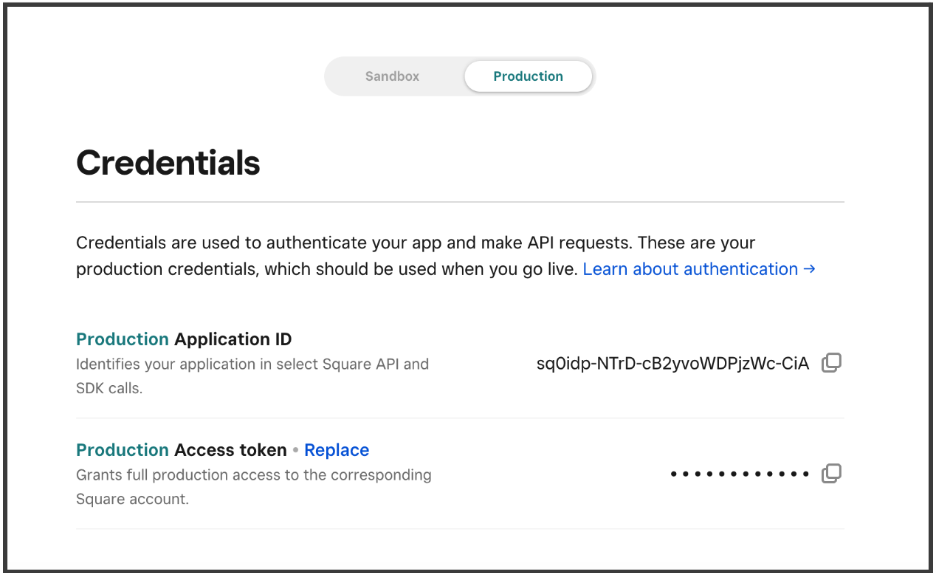
You will then be shown a “Credentials” screen. Click on the “Production” tab and then hit the copy button next to the “Production Access token” whose value will be hidden on the page.
Paste the Product Access token in a message to PodPlay Customer support. The token will begin with the letters EAAA
Embedding Square Gift Card Purchases on Your Marketing Site
The Square Gift Card Purchase page can be embedded on your marketing site as follows by replacing the square URL below with your Square URL:
<div class="container">
<iframe src="https://app.squareup.com/gift/MLR9SRVW704MX/order"></iframe> </div>