Credit Card Terminals
The Credit Card (CC) Terminal is a new piece of hardware that your club can connect to the PodPlay system for any Customer to pay for a purchase or add their CC to their Profile with a tap-and-go flow
If you would like to purchase the CC Terminal, reach out to the Customer Success Team. The total for the CC Terminal is $400.
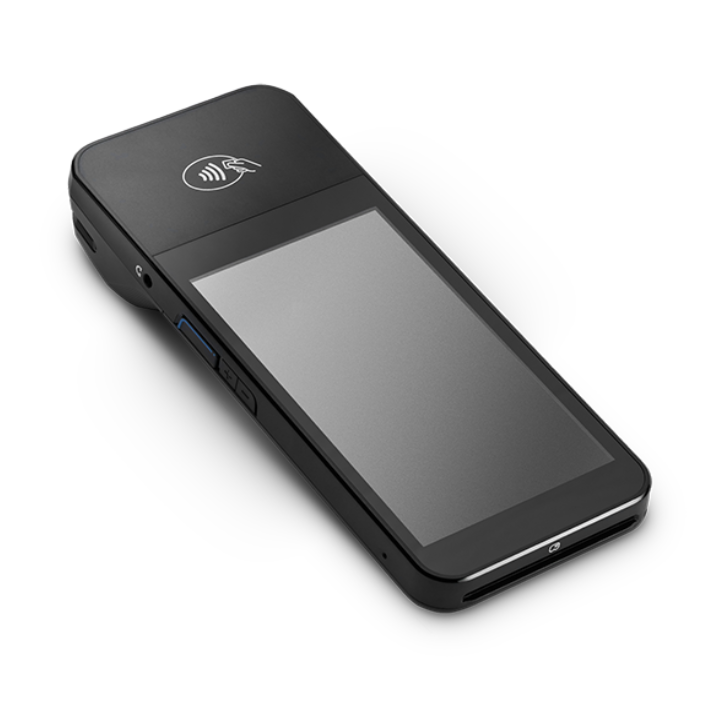
Once the CC Terminal is connected to your environment, Customers can do 2 things:
TAP & STORE: The Customer will tap their CC on the Terminal to STORE that CC to their Profile
Stripe's Terminal does not allow for "tap and store" of a debit card, so a Customer wants to store their debit card, they can do some from the Payment Methods button in their App
TAP TO CHARGE: Tap their CC or phone (Apple Pay/Google Pay) on the Terminal to COMPLETE A PURCHASE
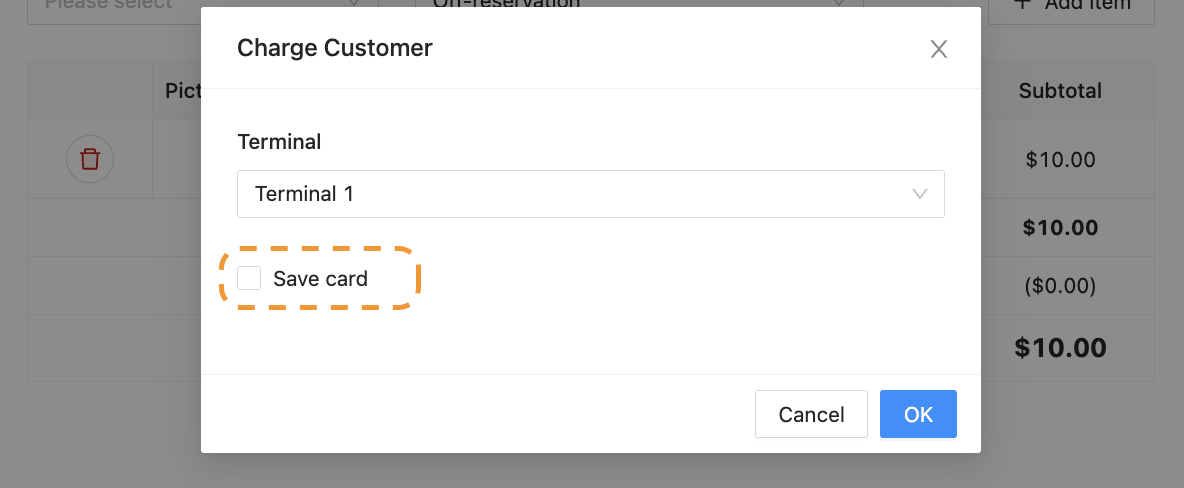
When tapping a CC to complete a Purchase, there is an option to store the CC on the Customer’s Profile
When tapping A PHONE on the Terminal (using Apple Pay/Google Pay), the phone has an encryption that will not allow the phone payment method to be stored on the Customer’s Profile
To use the Terminal, an Admin will perform an action inside the Dashboard.
TAP & STORE a CC on a Profile
If a Customer is tapping their CC on the Terminal to store the CC on their Profile, an Admin will:
Open up the Customer’s Profile
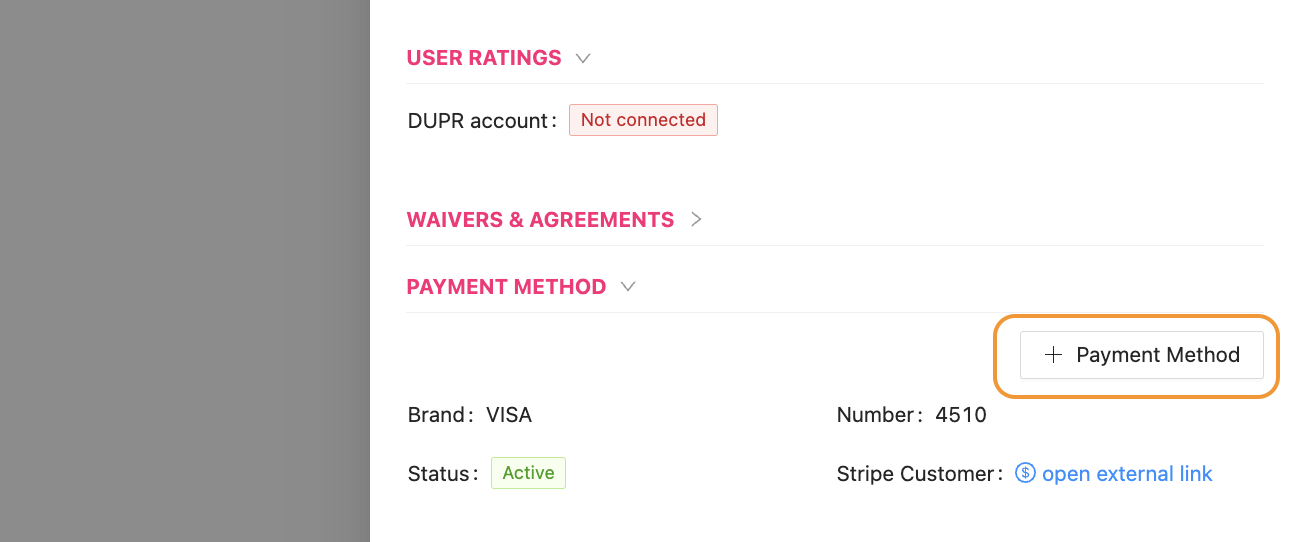
Scroll down to the Payment Method section
Click “+ Payment Method”
Choose the desired Terminal on the pop-up window
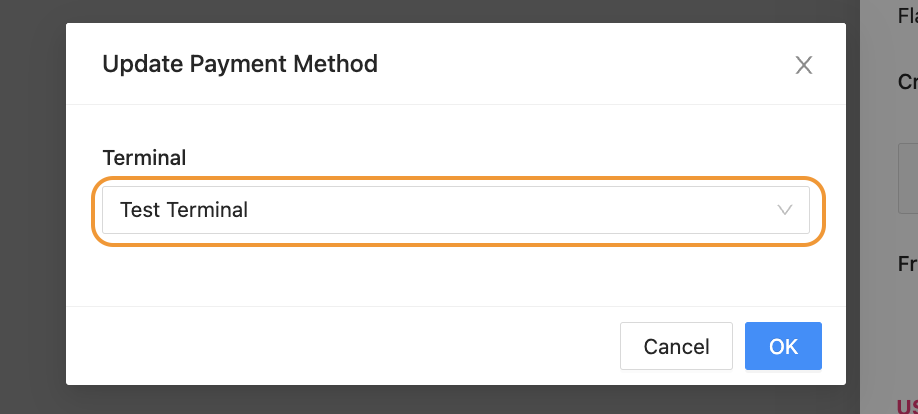
Click the blue OK button
Ask the Customer to tap their CC on the Terminal and add their CC to their Profile
TAP TO CHARGE and Complete a Payment
If a Customer is tapping their CC or phone on the Terminal to complete a purchase, an Admin will:
Click on “+ Charge” inside the Purchase tab of a Customer’s Profile
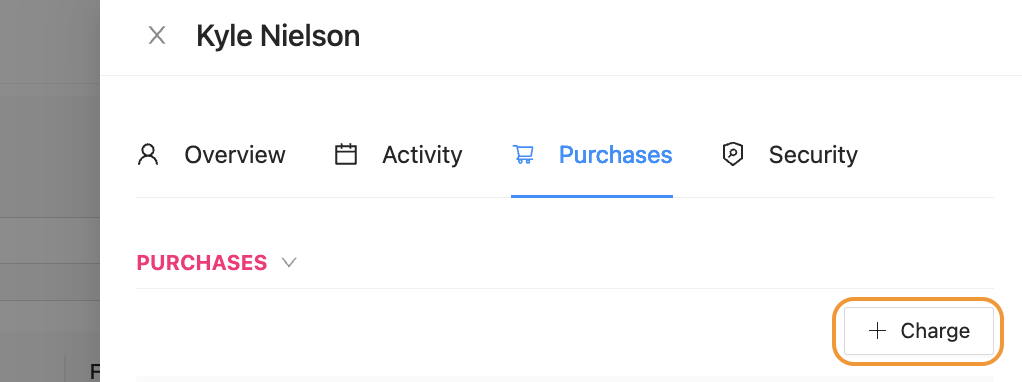
Click the “+ Add Item” button in the top right of the pop-up window to select all necessary specifics for the charge
Further context is in this article How to charge a Customer in the Dashboard
Click on the Card dropdown to choose the Card Terminal option
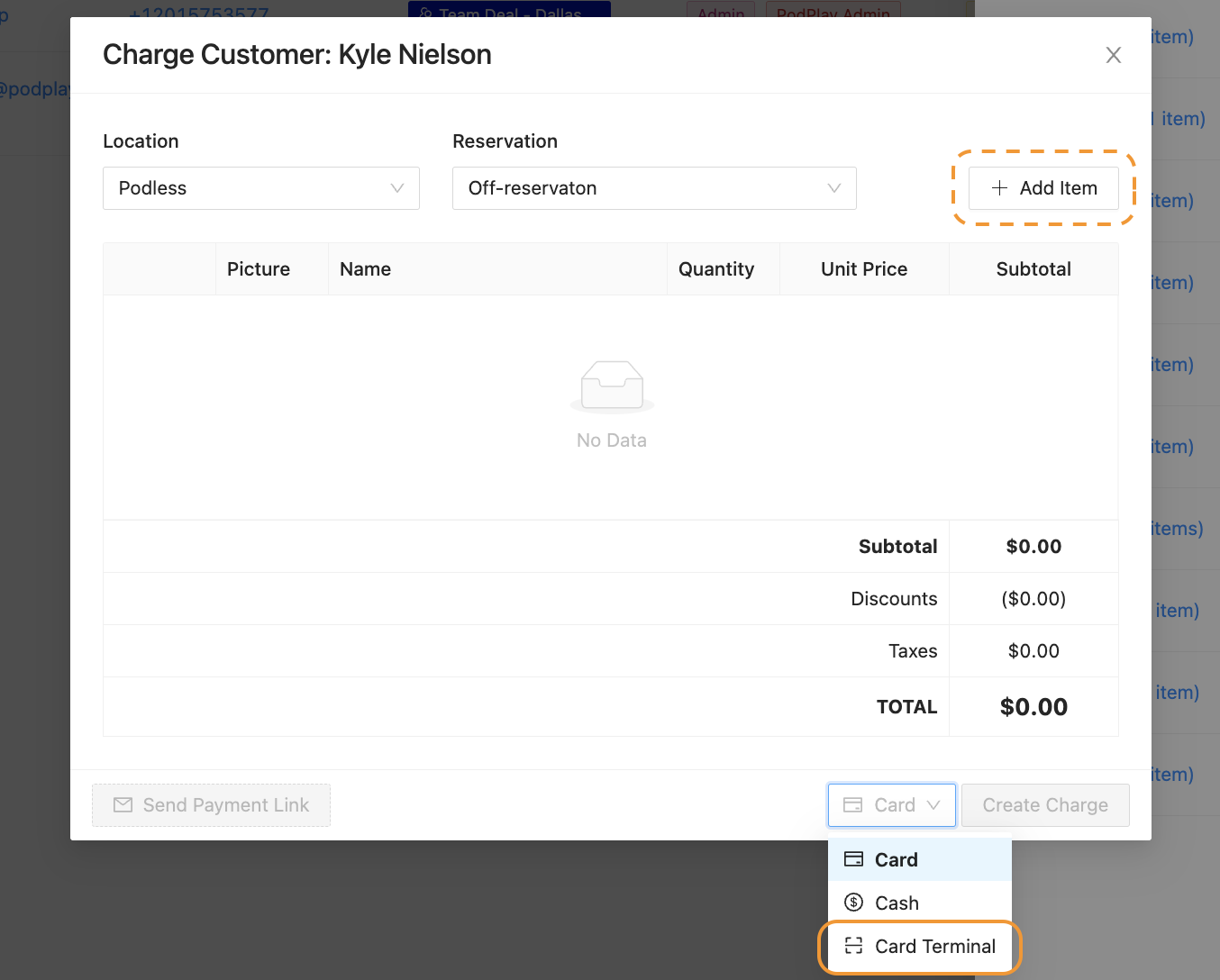
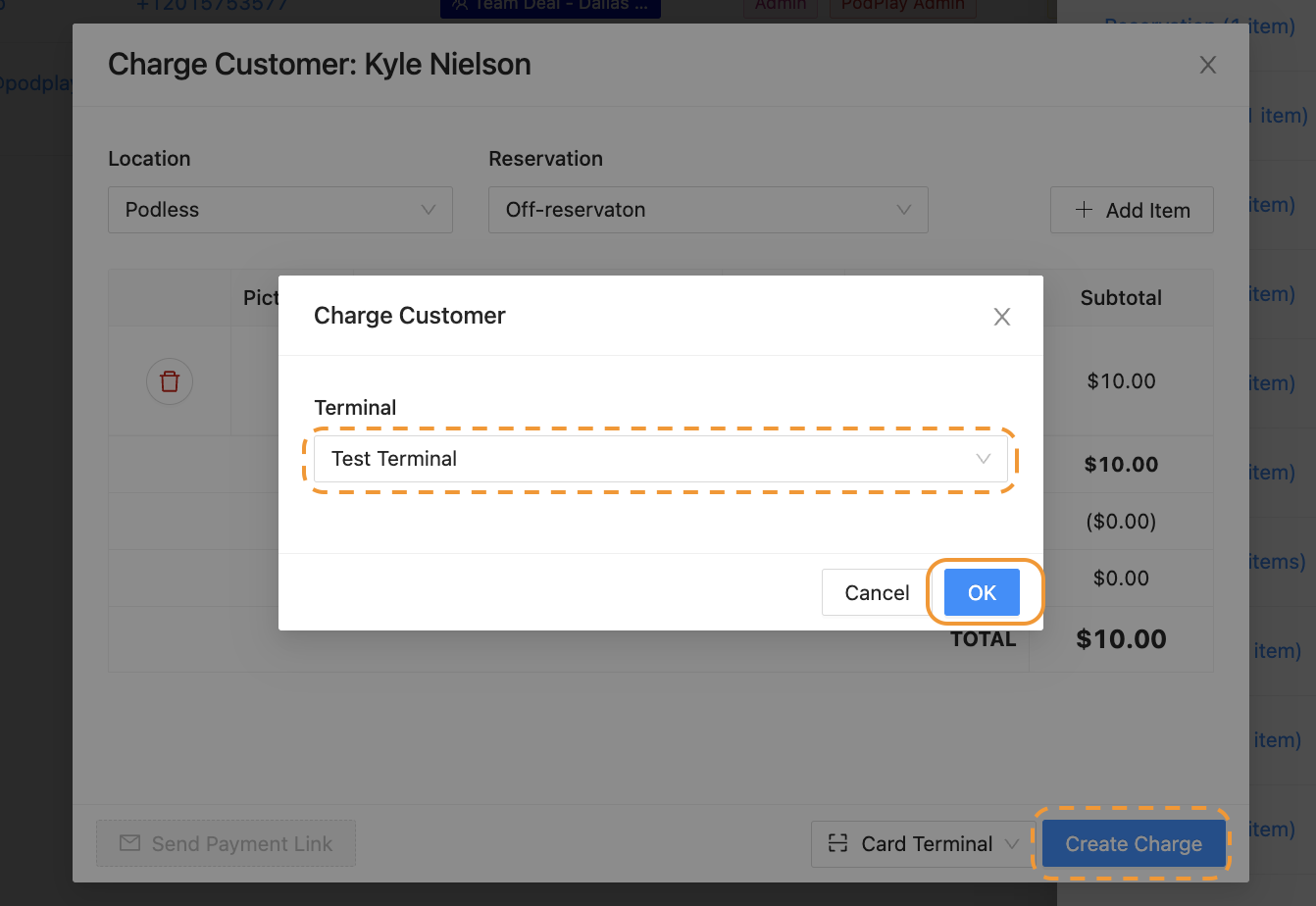
Click on the blue “Create Charge” button
Select the desired Terminal
Click the blue OK button
Ask the Customer to tap their CC on the Terminal
Should the Customer want to complete the purchase and store their CC in the same action, the Admin will need to select the “Save card” box