
Email to Customers about Community Chat Launch
The two emails below are drafted messages. You can edit them as needed to fit your brand voice. They can be leveraged as potential emails you send to your Customers for the Community Chat feature introduction.
PLEASE NOTE: you will want to include your own screenshot from your app rather than including the photos in this email.
Email #1
In-app Community Chat is here
You can now chat with other players right from within the app. If you use the mobile app, make sure you update to the latest version of the iOS App [link to App Store] or Android App [link to Google Play Store].
Click the button below to create your profile and get started!
[insert link with photo https://clubname.podplay.app/community/chat]
Tap on the chat icon to open the Community Chat
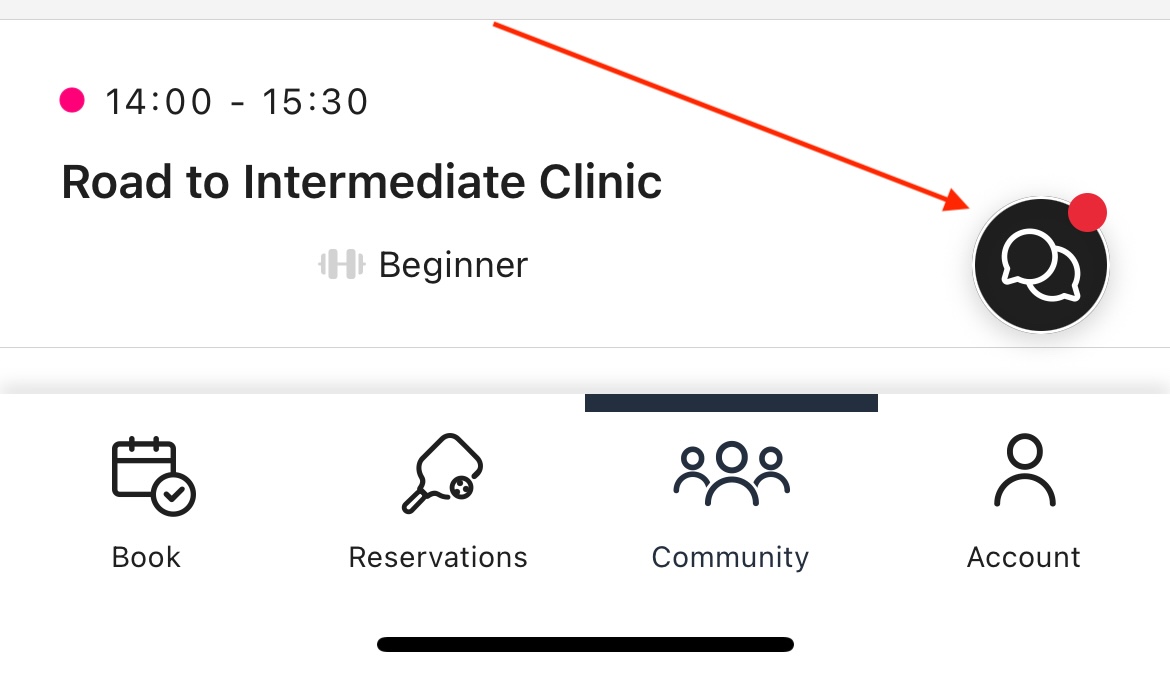
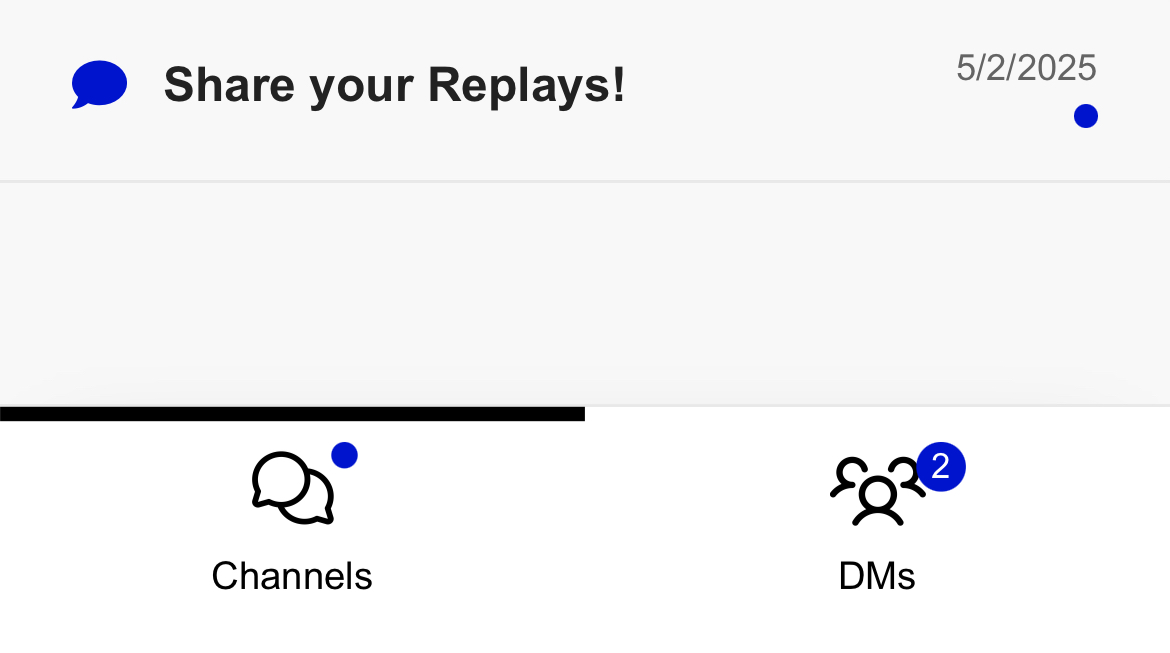
Once open, you will see public channels and DMs for 1:1 and group chats
Can I join or leave later?
If you don’t want to join right away or decide you want to take a break, you can always go to your account preferences and enable or disable chat.
Does it work in the mobile app?
Yes! Make sure you are on the latest version of the iOS App [link to your app in the App Store] or the Android App [link to your app in the Google Play Store].
Will I get notifications?
Yes, you will receive an email for unread mentions. In case you use the mobile application, you will also be able to receive push notifications. iOS already has them, Android is following soon.
We can’t wait to see you in our new community hub!
Play on,
[Club team name]
Email #2
Hi [Club name] Family!
We’re excited that many of you have enabled the Pickleball 365 Community Chat in our app! You are staying connected, finding players, sharing ideas, and celebrating your epic replays — all in one easy place.
With Community Chat you can:
Find players to drill or play with
Suggest special events or clinics
Share your best replays (you might even get featured!)
Stay up-to-date on everything happening at Pickleball 365
and much more…
Getting Started is Easy:
Open the app and go to the Account tab.
Tap Preferences.
Check Enable community chat, accept the Terms of Service and Privacy Policy, and click Join. You’re in!
A dot next to a channel name means there’s new activity in that channel.
Quick Tips:
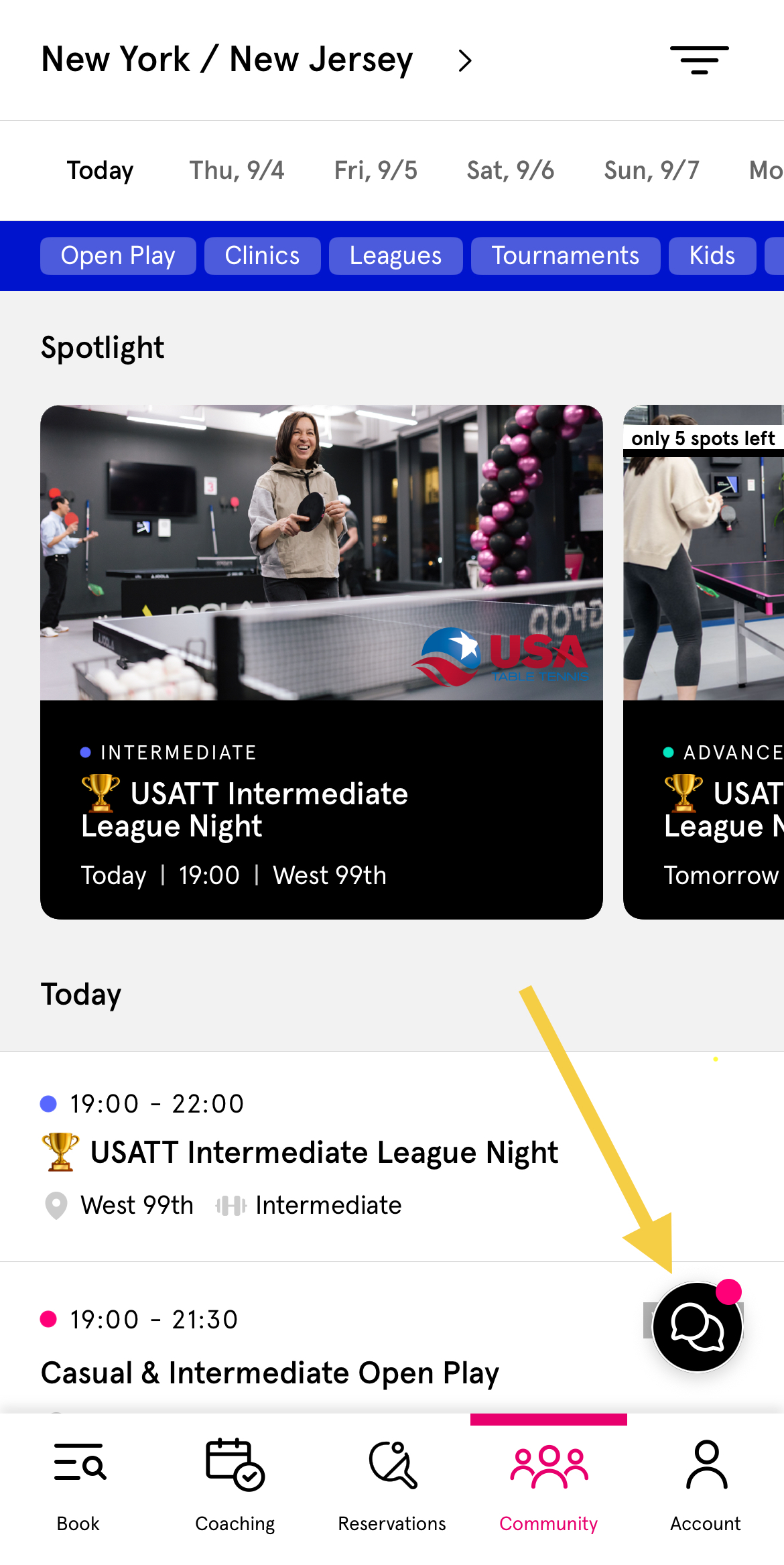
A small chat bubble icon will appear in the lower-right corner — tap it anytime to jump into the conversation.
A dot on the bubble means you have unread messages.
Want push notifications for a specific channel (like Announcements)? Click the gear icon next to the channel name and change your settings.
We’re excited to bring you even more ways to connect off the court and build even stronger friendships on it!
See you in the chat,
[Club team name]