
Creating a Kids-Only Event
When you are Creating an Event, an Admin will check off the “Kids Only Event” box:
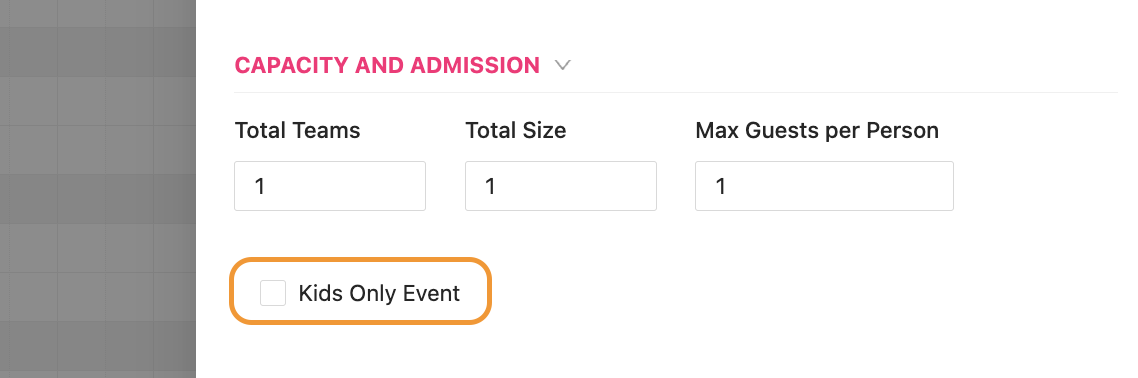
In doing this, the Admin is saying that ONLY Kid sub-Profiles can sign up for this Event. A regular adult with a regular Profile will not have the option to sign up for this Event when they review it on App.
When a Customer goes to sign their child up for the Kids Only Event, the Customer will receive a prompt to either choose one or several of their children to add, or to “Add a Kid” sub-Profile to their Profile.

Once a Customer has signed up for a Kids Only Event, their name and their child’s name will appear in the Attendee list of the Event.

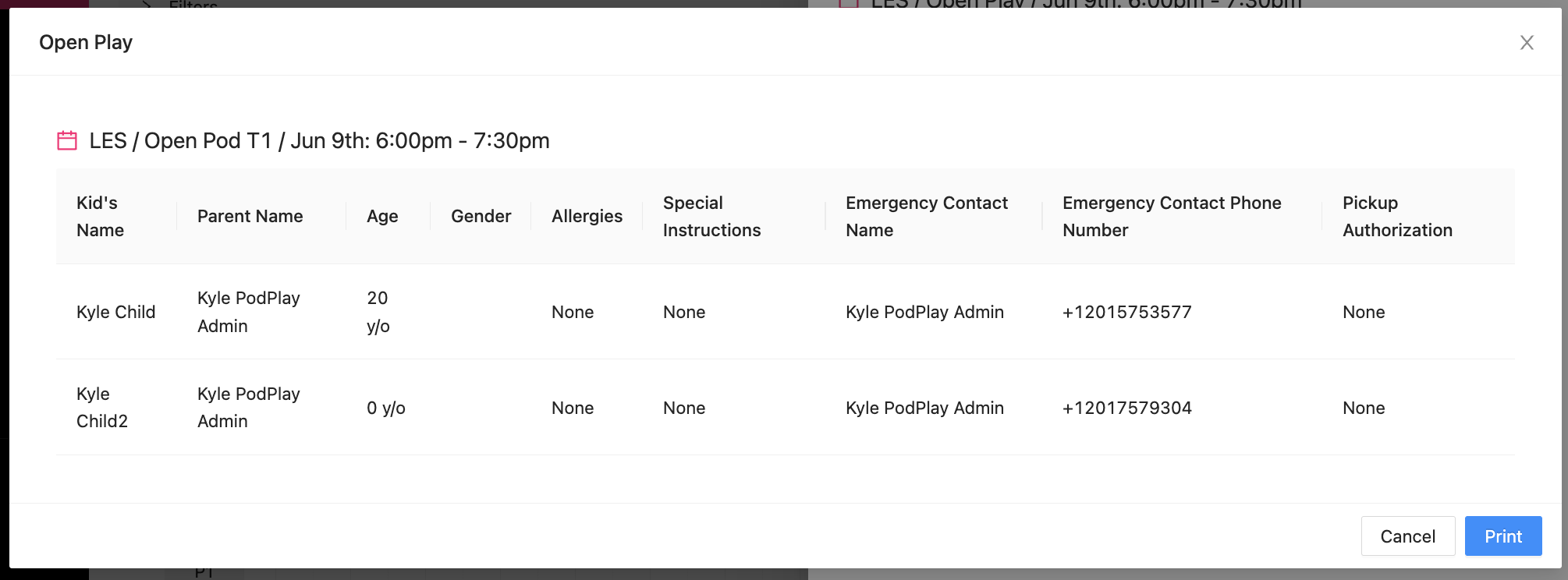
The icons under the Profile list are showing who is the parent and who is the child. If an Admin wants to review the children on the Event, they can click on the “Print” button above the attendee list and a new pop-up appears. This pop-up will show all of the information pertaining to any child added to the Event.
PLEASE NOTE: today, a Kid sub-Profile cannot join a regular Event, they can only join Kids-Only Events.