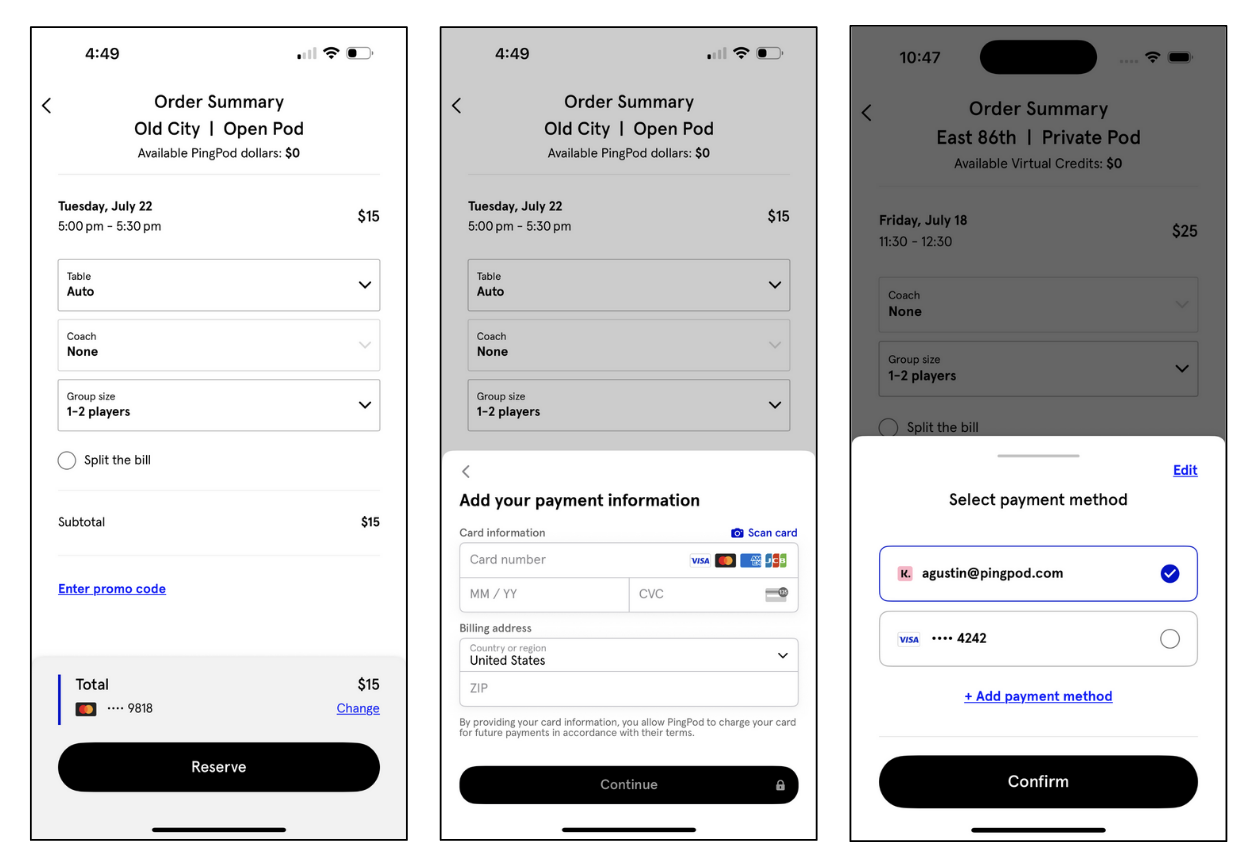
Add and Use Different Credit Card(s)
Adding a Credit Card
For a Customer to add a credit card to their Profile, they will:
Navigate to the Account tab of the app (most frequently 1bottom right)
Click on the Account Info button (top button)
Click on the button called “Payment methods”
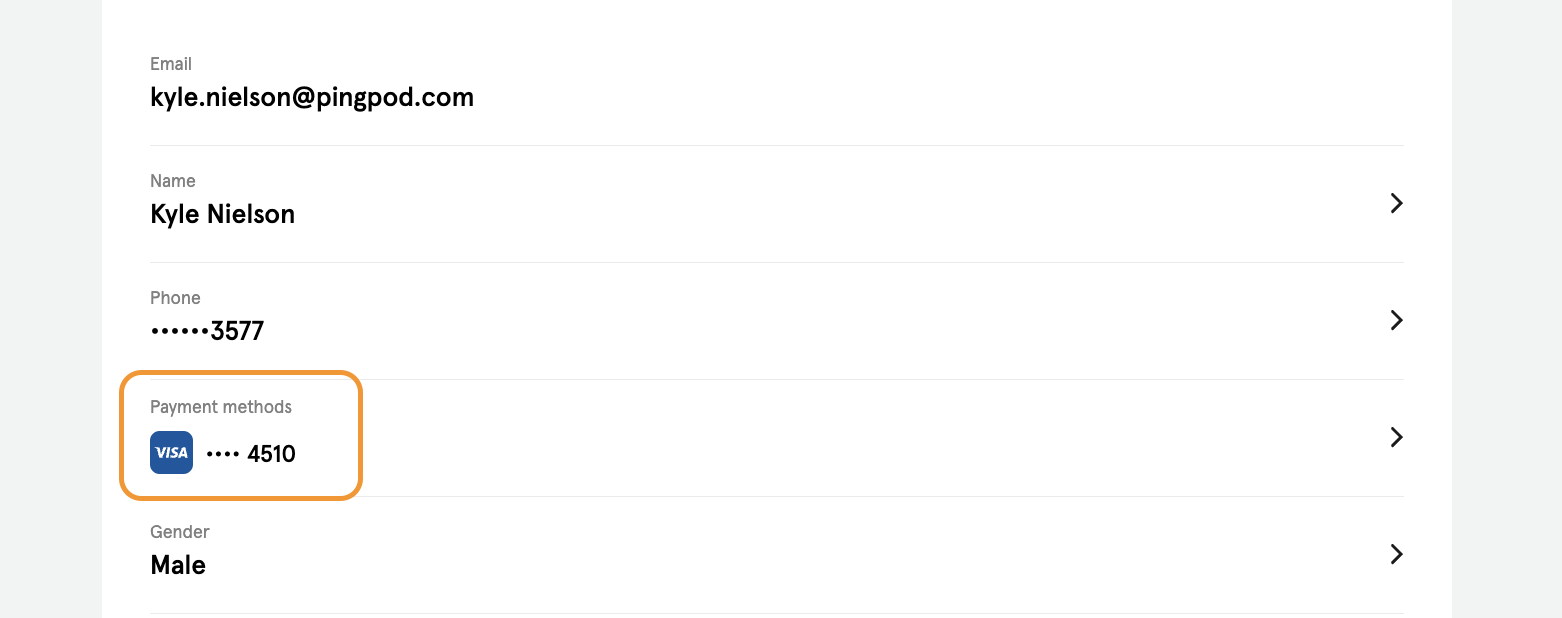
Using multiple Credit Cards
Once a credit card has been added, the Customer has the option to use different payment methods for various purchases. As an example:
The Customer can have one credit card for their default purchases, like booking Reservations or Event signups
The Customer can have another credit card for their Membership subscription
If the Customer wants to have the same payment method for all purchases, the card they add on file will become the default.
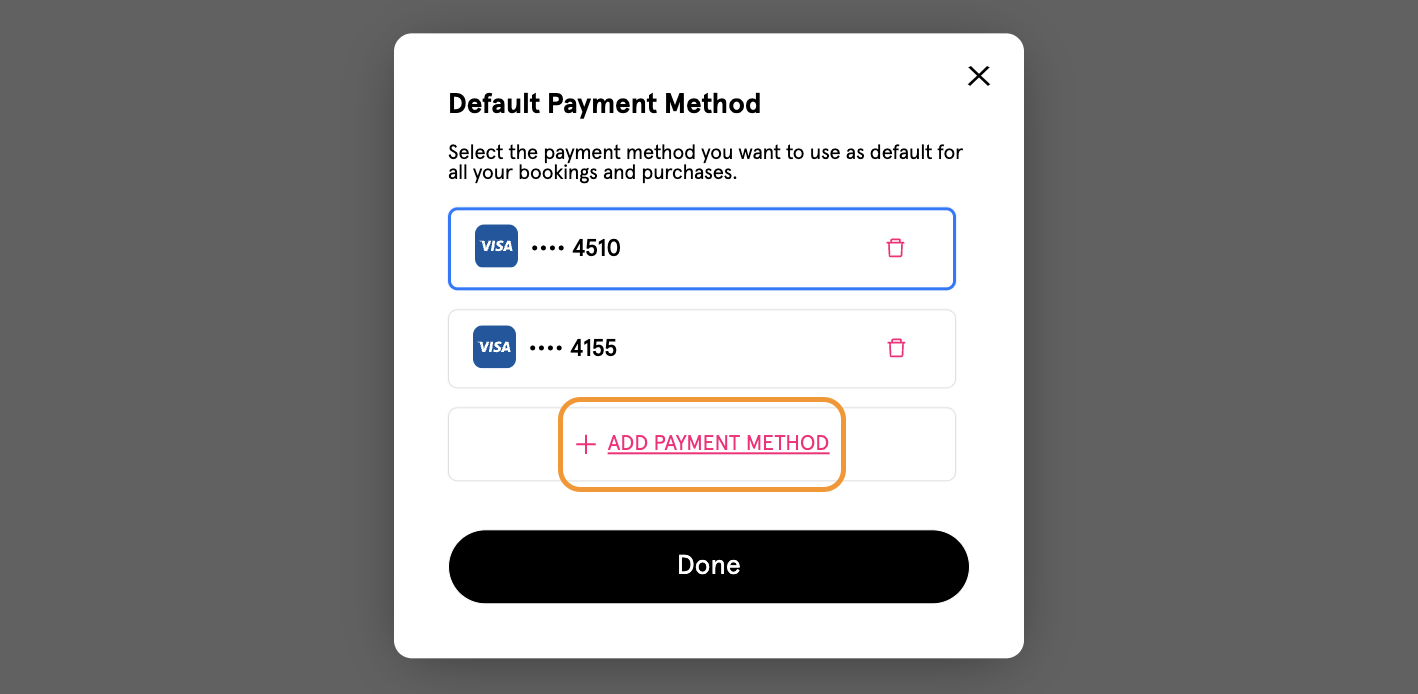
If the Customer wants to use different credit cards, they can click on the “Payment methods” button inside the Account Info section of the app and add another credit card. They can do so by:
Clicking on the Default Payment Method
Notice a pop-up appears
Select “ADD PAYMENT METHOD”
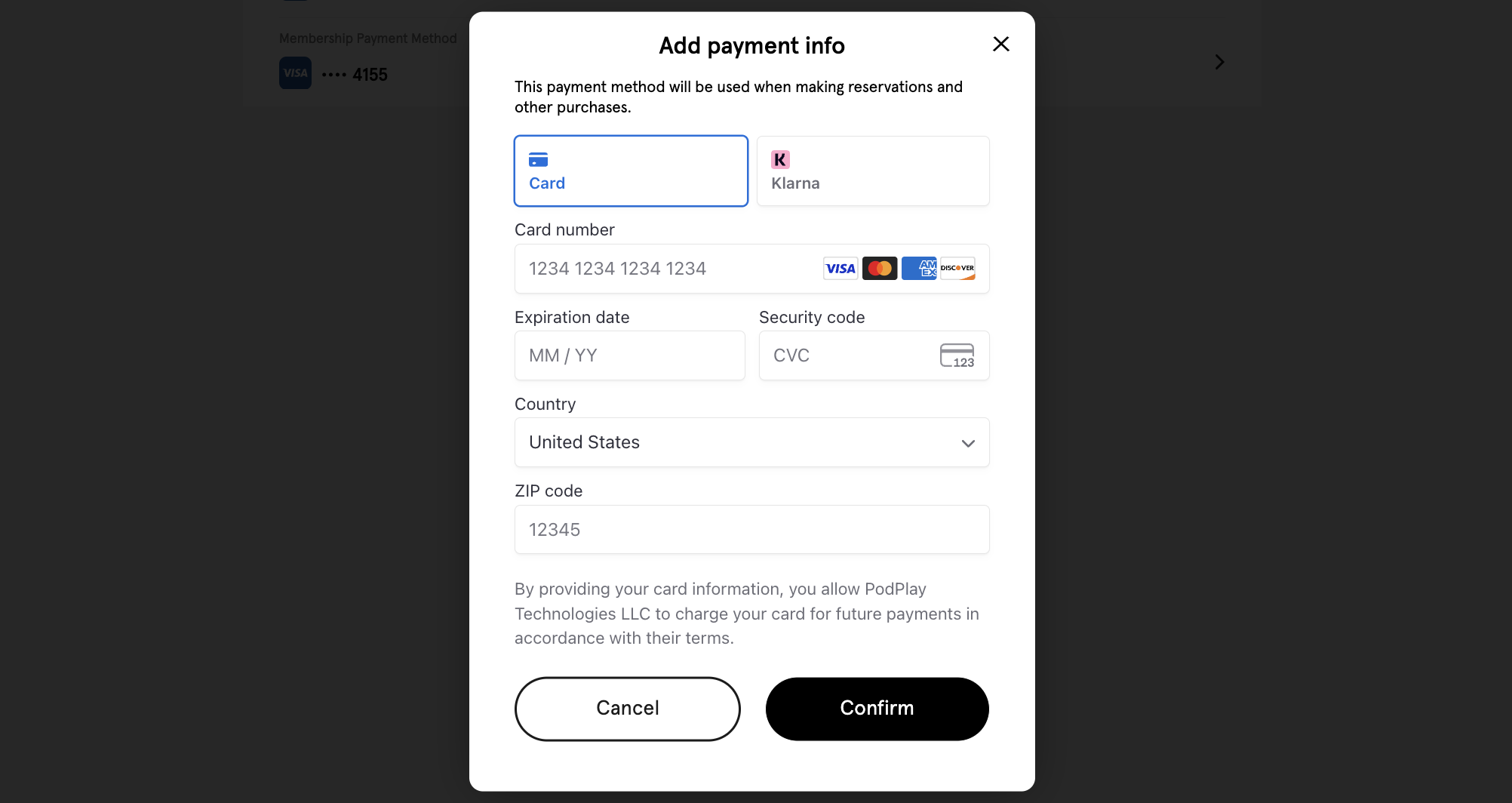
Completing the visible boxes to add their new credit card
Once a 2nd credit card is on file, the Customer can choose which credit card is for which purchase.
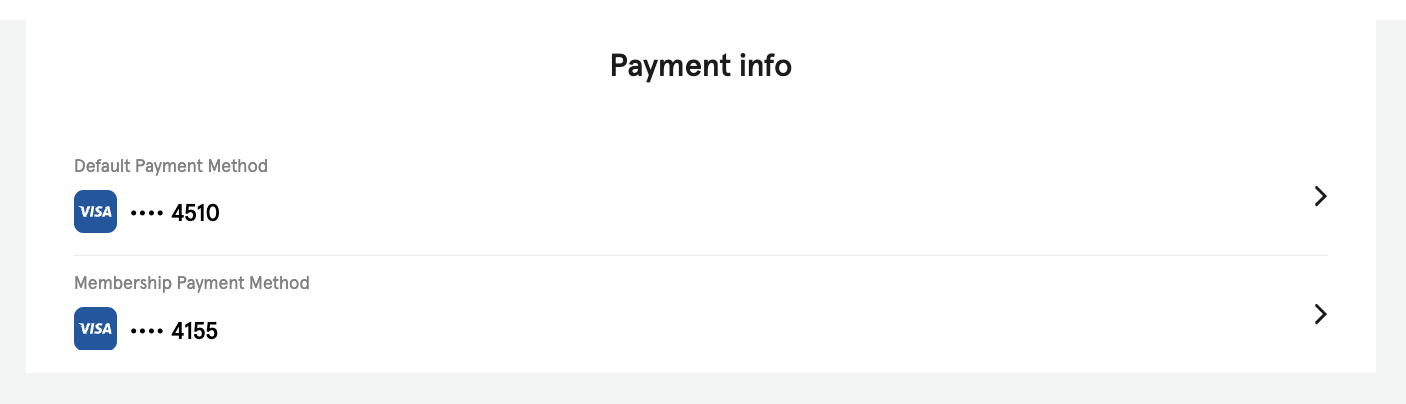
In the below screenshot, there is one card used as the Default Payment Method and another card used as the Membership Payment Method.
Adding or selecting a different credit card is also available during the booking flow.