
Enhanced Replays in the Dashboard
This article reviews the setup for Enhanced Replays, powered by PB Vision's AI video analysis, how each replay type works, what costs are involved, and how your rates are configured. The PB Vision integration is coming live across all clubs at the same time, we'll notify you in advance.
PodPlay has four different types of video replays:
Instant Replay: These are 10-seconds and play on the monitor and they will show up throughout the Reservation/Event; only captured by the Customer during play.
Quick Replay: These are 25-seconds and are captured each time someone clicks the Replay button (on the Play Button or the kiosk); only captured by the Customer during play.
Custom Replay: These are between 1-minute and 60-minutes, and are captured by the Customer from the App or by an Admin from the Dashboard once a Reservation/Event has ended.
Enhanced Replay: These are Custom Replays with AI analytics, are between 1-minute and 60-minutes, and are captured by the Customer from the App or by an Admin from the Dashboard once a Reservation/Event has ended.
With the help of your PodPlay CSM, you set the per-minute price for each Custom and Enhanced Replay in your Dashboard.
Enhanced Replay Prices
Custom Replays are full-length video clips of the session that players order from their past bookings. There is currently no processing cost to the club for Custom Replays, 100% of revenue from Custom Replay sales goes directly to you. We recommend starting at $0.10/min ($6.00/hr).
Enhanced Replays include everything in a Custom Replay plus PB Vision's AI-powered analysis: shot breakdowns, court coverage heat maps, tendencies, and an objective DUPR-scale rating based on actual match performance. Enhanced Replays always have a processing cost.
Processing cost: $0.15/min is the floor price. You cannot set your Enhanced Replay rate below this.
Your revenue: Anything you charge above $0.15/min goes directly to your club.
Recommended rate: $0.25/min ($15.00/hr) leaves you with $0.10/min profit after processing.
NOTE: No cost comes out of your pocket. All replay fees, including the AI processing cost, are paid by the Customer at the time of purchase.
Example Revenue at Recommended Rates
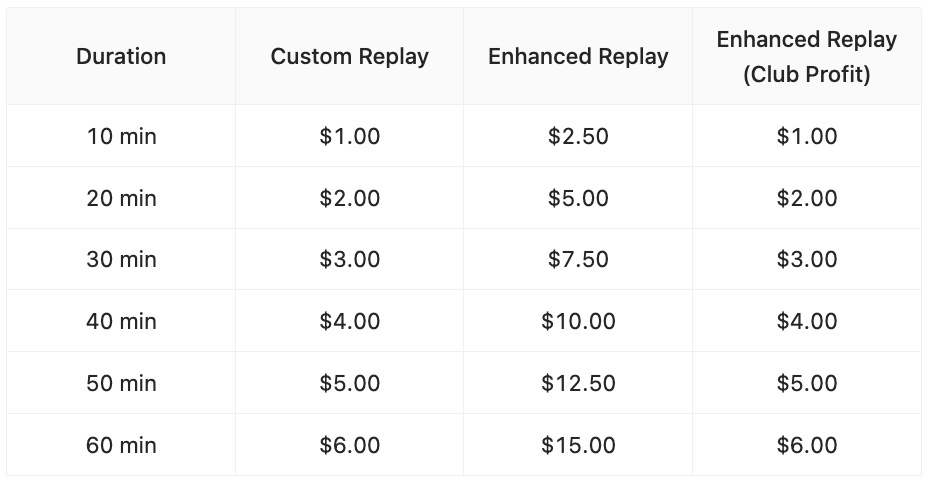
The table below shows what customers pay and what your club earns at the suggested rates ($0.10/min Custom, $0.25/min Enhanced). Customer price is rounded up to the nearest $0.50.
How to Set Your Prices in the Dashboard
Your PodPlay CSM will help you configure the Enhanced Replay pricing. In the near future, with the release of Self-serve, you will have the ability to edit these rates yourself.
Once you confirm your desired rates with PodPlay, those rates will be applied when the Enhanced Replay feature goes live. You are welcome to choose higher rates than the suggested prices.
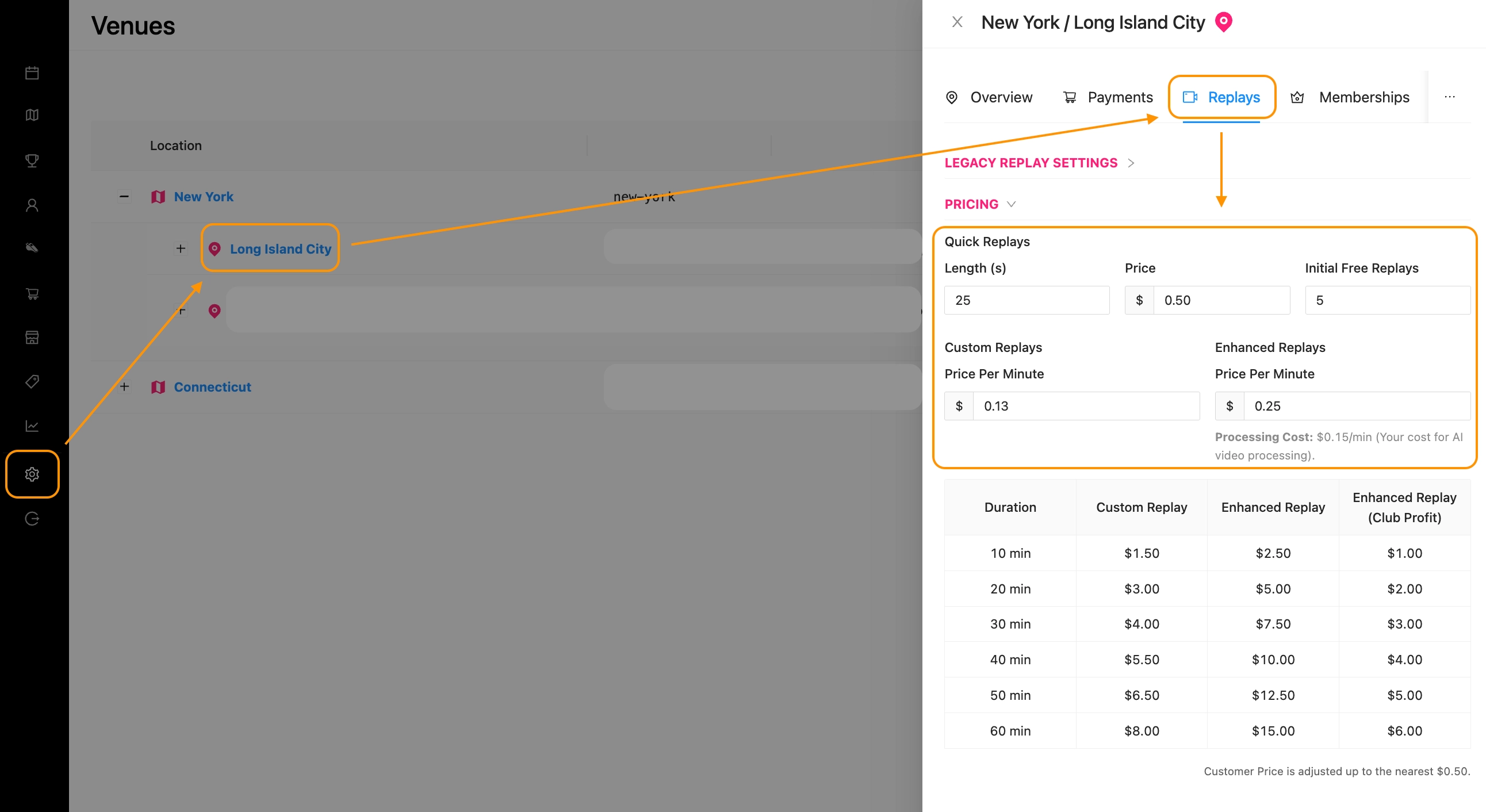
In the future: To configure your replay pricing, log in to your environment’s Dashboard and navigate to the Venue page > select the venue location > click on the Replays tab of that venue. You'll see fields for:
Quick Replays:
Length in seconds
Price / Quick Replay
Initial Free Replays (these are provided to every Customer Profile upon creation)
Custom Replays:
Price per Minute, set this to your desired rate (e.g., $0.10/min).
Enhanced Replays:
Price Per Minute, ****set this to at least $0.15/min (the floor). We suggest starting with $0.25/min.
In the screenshot below, this particular Client has chosen $0.13/min for their Custom Replays. The table of prices provided, within the Dashboard, adjusts as the prices are changed.
Capture Enhanced Replays from the Dashboard
Enhanced Replays can be captured after the Reservation or Event ends, and can only be captured when a Reservation or Event is running. Meaning, if an Event runs until 2 pm, and there is no Reservation or Event form 2 - 3 pm, even if Customers are on the court still playing at 2:30, the system will not record Replays the Custom Captures. Admins must wait until 2 pm to capture any Enhanced Replays in the Dashboard.
To capture an Enhanced Replay, an Admin will:
Navigate to the preferred Reservation or Event
Click on the Replay tab
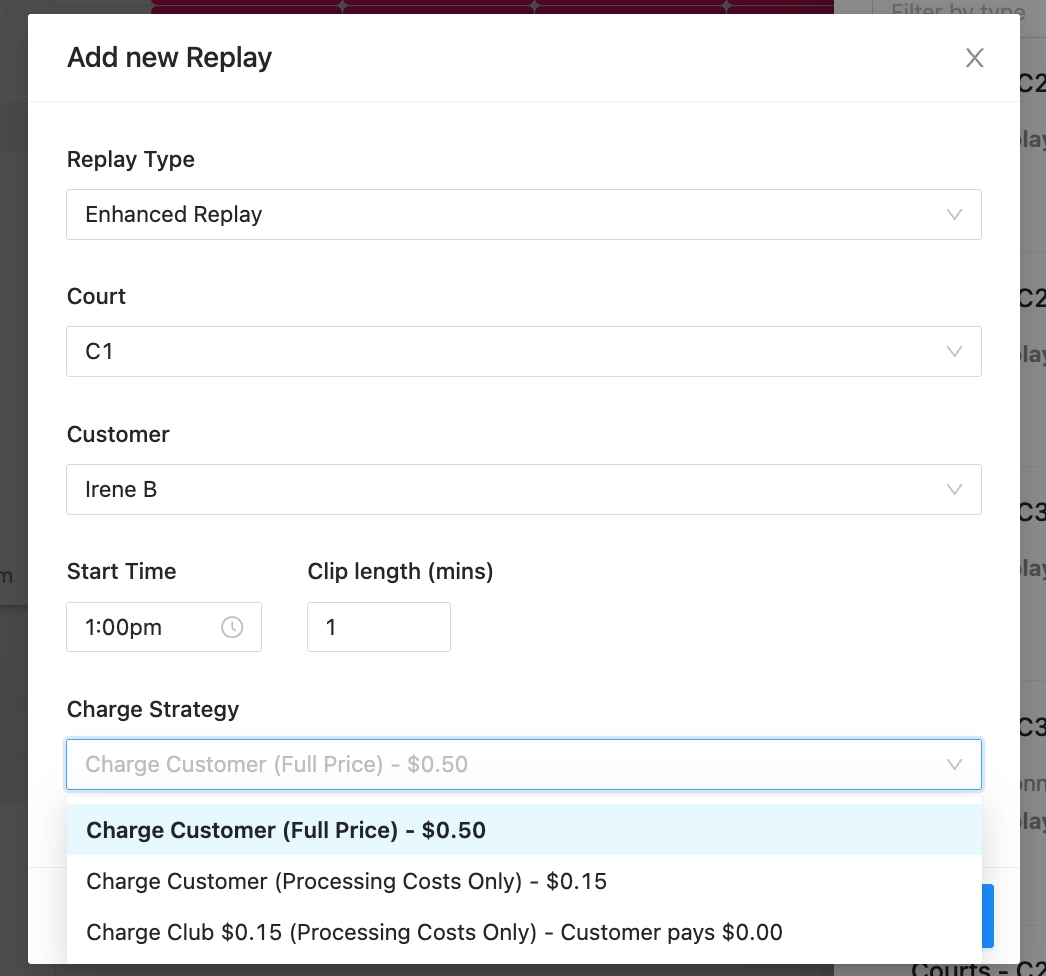
Click on the [+ Replay] button (a pop-up window appears)
Choose the Replay Type “Enhanced Replay”
Select the Court
Select the Customer to bill for the Enhanced Replay
Select the Start Time & Clip length (mins)
KEY THING: any Admin or Customer ordering an Enhanced Replay should remember the specific time they started the match as PB Vision struggles to differentiate between warm-ups and the real match.
Click on the dropdown options for the Charge Strategy; options include
Charge Customer (Full Price) - rate is equal to the minute cost
Charge Customer (Processing Costs Only) - rate is equal to the floor price
Charge Club $0.15 (Processing Costs Only) - Customer pays $0.00
Click the blue button [Create Replay]
The pop-up window in the Dashboard will look like the below picture.
What to Expect at Launch
Timeline: The PB Vision integration is rolling out to PodPlay Clients in several areas. If you you are on the Pro tier with scoreboards and replays enabled on your courts, ask your PodPlay CSM for early access.
No action required from Customers: Customers can begin to purchase and capture Enhanced Replays once the feature is turned on in your environment.
Custom Replay pricing: There is no processing cost for Custom Replays today. This is subject to change in the future, and we'll communicate any changes well in advance.
Tips
The Video Retention Policy is to retain the replay camera footage for 48 hours before deleting it forever. Once the window closes, the replay is no longer available to purchase.
Coaches can remind their students to order the Enhanced Replay after a coaching session and use the AI-powered breakdown to anchor your follow-up feedback to real match data.