
Revenue Reconciliation with PodPlay
A System of Record
PodPlay is the system of record for venues. That is, PodPlay triggers and records every single revenue transaction that was made through the PodPlay system (web-app, iOS app or Android app). PodPlay uses Stripe as its payment processor, which is the technology that actually charges your customers’ cards and manages refunds and chargebacks.
PodPlay is not an accounting platform. The platform that the majority of PodPlay clients use to generate accounting statements is Quickbooks Online (QBO). There is no direct integration that exists between PodPlay and QBO or Stripe and QBO.
There are two methods for transferring your club’s revenue records into QBO.
Use athird party application, such as Synder or Amalgam to connect Stripe with QBO.
Export the revenue transactions into excel → sum up your main revenue categories → manually enter your monthly revenue totals into QBO.
Method 1:
Method 1 is an automated solution. Synder and other third party applications are a bit expensive. For Synder, the pricing model is a fixed monthly charge and additional fees if you exceed certain transaction thresholds. When we used to run PingPod, we found that the transaction limits were low and we were paying thousands of dollars for the service. We also looked into Amalgam, an excel plug-in, and found it too complicated to implement.
The other drawback to using a third party connector is that occasionally the link between Synder and QBO breaks and requires a manual reset of the connection.
Method 2:
Nearly all Clients are using Method 2 in order to avoid paying the third party fees.
On the admin dashboard simply navigate to your Purchases Page → Export Button → Select the time frame. Three files will download; a “Summary” file, a “Settlements” file and a “Line Items” file.
The Summary CSV is a concise overview of your transaction revenue grouped by revenue category (Bookings, Event Signups, Membership, etc) as well as by location. The Summary sheet is useful for a quick overview of your revenue categories and total revenue for a given period.
We advise using the Settlements CSV for a more detailed and accurate breakdown of revenue.
Once you export to CSV, you can use the filter function to group your revenue transactions by location, customer, revenue category or otherwise. Click into the top row of the sheet → Data → Filter. You can also manipulate this data any way you like using custom excel formulas.
Notes on Stripe and Revenue Data
There are two things to note about the records exported from the Purchase page of the Dashboard:
Stripe has a minimum 2-day delay in payouts. Sometimes Stripe will hold funds for slightly longer than 2-days (like over the weekend), though the majority of payouts are 2-days.
Revenue generated on a Monday will payout to your bank on a Wednesday
Revenue generated on a Thursday or Friday will payout to your bank the following week
Revenue generated around a holiday will take several more for payout as Stripe does not payout during U.S. holidays
The Settlements CSV uses the UTC timezone to keep true-to-source because Stripe charges Customers in the UTC timezone. Thus, to calculate the UTC timezone to your club’s timezone:
Eastern timezone = 5 hours behind UTC
Central timezone = 6 hours behind UTC
Mountain timezone = 7 hours behind UTC
Pacific timezone = 8 hours behind UTC
Automatic Payments and Staff Charges
The vast majority of transactions in a given month are triggered, processed, and recorded automatically by the PodPlay system. Occasionally, you or your employees (i.e., General Manager, Customer Support, etc) may have had reason to trigger a payment through the Dashboard. In order to maintain a clean revenue ledger, it is important that employees are thoughtful when setting up a Dashboard payment. That means selecting the correct product and charging within a reservation or event where the customer was playing.
In the event that a Dashboard charge does not fall cleanly into the set of pre-existing categories, it is advisable that they include a description to go along with the charge. That way when the item ends up on the Settlements CSV, the description will help clarify which revenue category the charge belongs to.
Revenue Reconciliation
Here are the steps to rapidly achieve everything noted above and reconcile the money received in your bank account with the values in the Settlements CSV:
Log into the Dashboard
Navigate to the Purchase page
Click on the Export button (at the top of the page; if you don’t see an Export button, you don’t have the Owner role and can ask your PodPlay CSM to provide you with said role)
Select a date range that includes ~5 days before before the month began and ~5 days after the month ends (see point 1 above in section “Notes on Stripe and Revenue Data”)
Open the "Settlements" CSV (there is also the "Line Items" and "Summary" CSV; not used for reconciliation purposes)
Review the column "Payout ID" and "Payout Arrival Date" (these are on the far right side of the CSV)
Filter for a specific date in the "Payout Arrival Date" column (by including several days before the month begins, point 4 above, you will find some revenue from the previous month includes in payouts for the current month you’re reviewing)
Add and filter the "Net Revenue" column values up once a specific date is selected
Match that number to the bank's receipt the respective day
The Settlements CSV can be filtered by Event type for a detailed analysis of revenue by category.
Notes on Coaching/Instructor Payouts
The PodPlay system records all of your Coaches’ private lessons (Reservations) and Clinics (Events). On the admin dashboard, navigate to your Coach Page → Export Button → Select the time frame. One file will download to your computer for all Coach lessons (Reservations & Clinics).
The Revenue Amount in column E is the amount of revenue generated by that Event or Reservation for the Club
The Transfer Amount in column F is the amount that is transferred over to the Coach
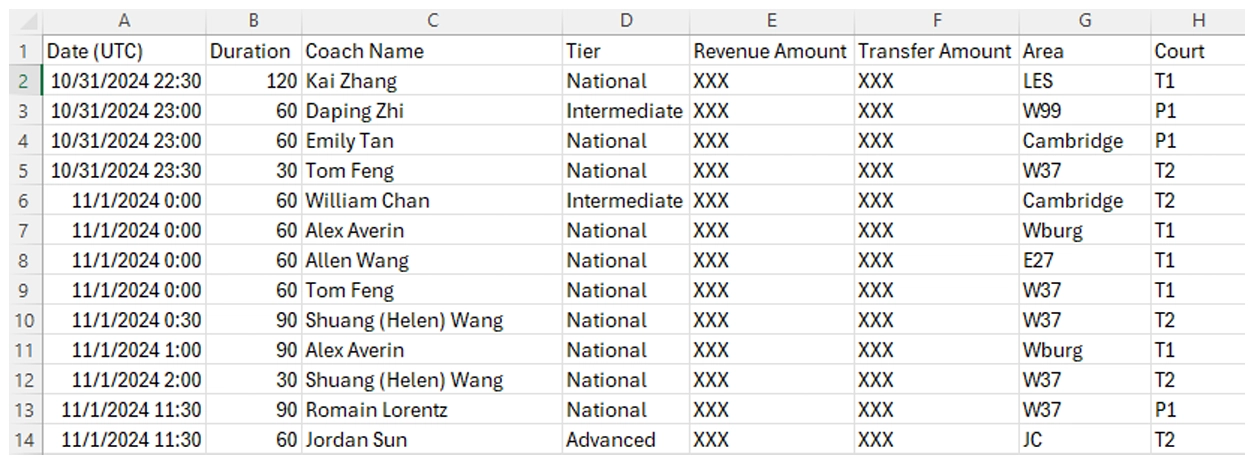
By default, your Coaches will have the opportunity to set up a payment profile through their coach settings. If they complete the payment profile, they will receive revenue from lessons through the PodPlay system. If you do not want to have your Coaches paid through the PodPlay system, we can turn off the payout system.
Whether using the system to pay coaches or not, this export from the coach page helps to track their potential payouts.
Note for PodPlay's International Clients: Coaches are not paid through the PodPlay system if the Club is located outside of the U.S. The reason for this is that paying a Coach through the system would require a cross-border transfer, resulting in a currency exchange. Coaches at Clubs located outside of the U.S. should still be added properly to all Events and Coaching lessons, then the Club pays the Coach outside of the system. Clubs can easily manage how much a Coach needs to be paid using the Export button on the Coach page in the Dashboard. Data included inside the exported CSV includes:
A list of all private lessons, clinics, and other activities each Coach taught
How much money was listed on the Coach's rate during each lesson, clinic, or event
This CSV provides a clear, organized summary of Coach compensation.