
NEW - Settlements and Line Items Exports
The Export on the Purchase page of the Dashboard has been refactored to show additional information. The following article explains how to view the new CSV files downloaded from the Export button.
Exporting Data
The only Admin Role that can view and click on the Export button is the Owner role. If the Export button is not visible, please ask your PodPlay CSM to enable it for you by providing you with the Owner role.
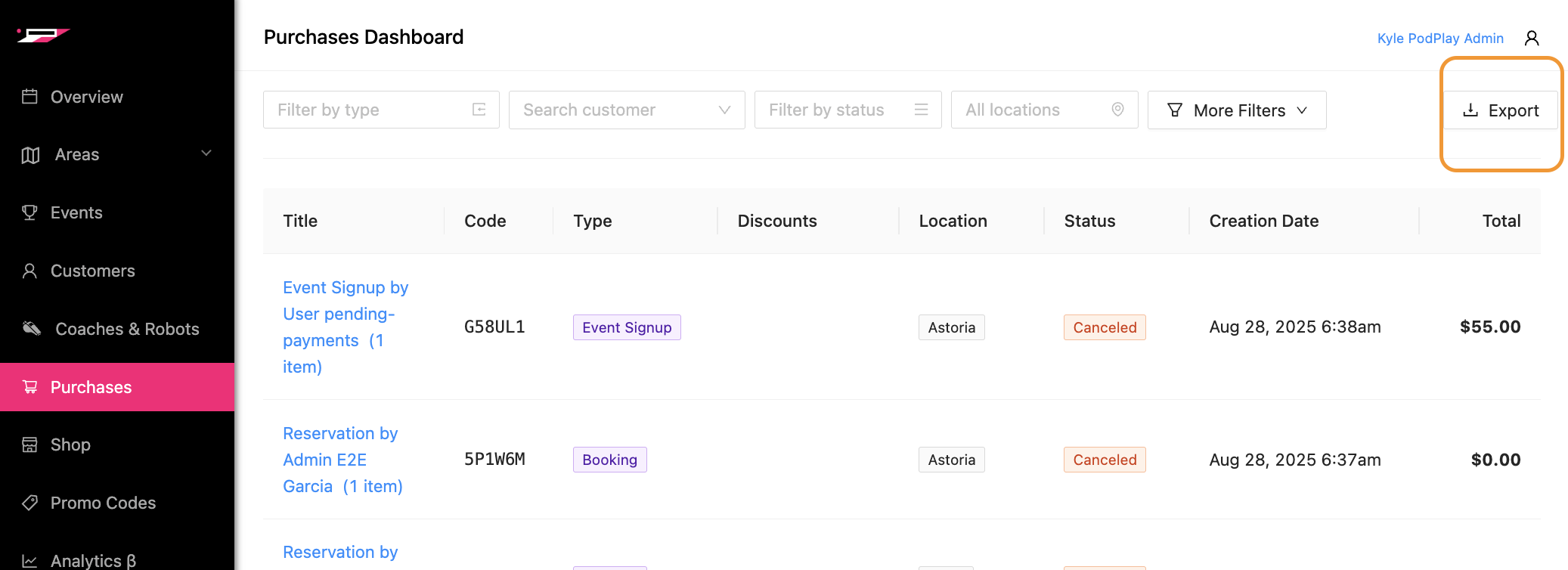
When the Export button is clicked, you can select a date range to export.
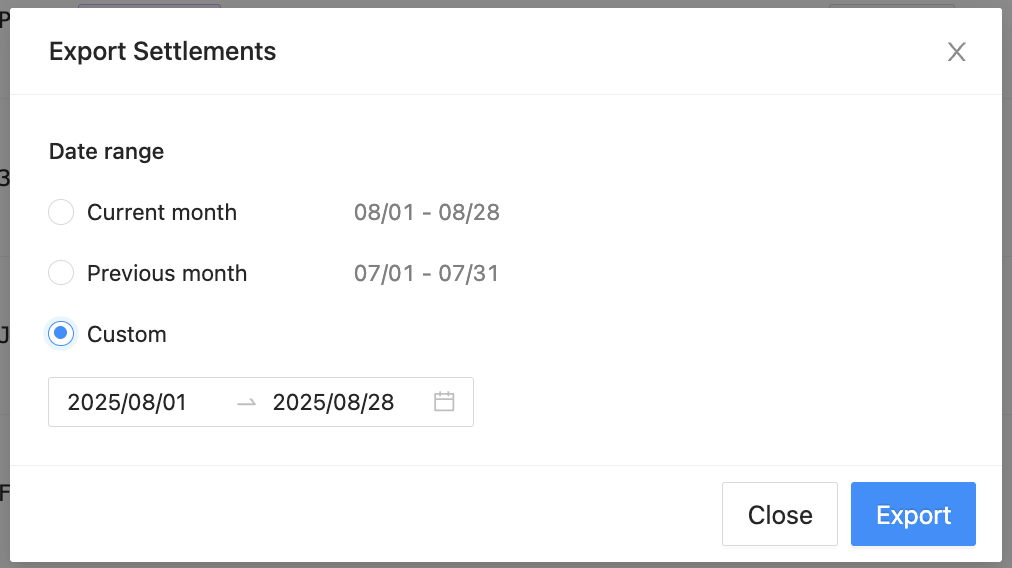
The files will download from your browser into a zip file, and when the zip file is opened, a folder with CSVs will appear in your window.

Revenue Reconciliation Dates
Within the Settlements CSV, in the far right columns, are the Payout ID and Payout Arrival Date. By reviewing the dates and aggregating the rows for each Payout Arrival Date, you can match the transactions and Customer purchases with the amounts sent from Stripe to your bank account.
Reconciliation Equation
The complete list of equations is:
Subtotal - Discount = Taxable Amount
Total Tax = sum of all tax columns (should your club have more than one)
Gross = Subtotal - Discounts + Taxes
Paid Amount = Gross - Credits (if used)
Payment Fee = Paid Amount x 2.85% + $0.30 (the Stripe fee is relative to global location)
Net Received = Paid Amount - Payment Fee + Cash Amount (if used)
Net Revenue = Net Received - Taxes
Below is the summary and a detailed list of each exported CSV.
Settlements Export
They represent a Transaction for goods or services that has been finalized. It has high-level information about each Customer transaction, such as:
Date (when it settled in UTZ time zone)
Description of the charge
User information (email, name, membership status)
Areas (where the charge should flow to, if required, typically where the charge happened)
Event info (name, start date, Event type)
Reporting Category (charges come from customers, transfers are outgoing and typically to coaches, refunds are separate Settlement rows, and refer to a previous Settlement row)
Financial Information (what and how the settlement is being paid for)
In a section above, equations and an explanation of payouts are provided for reconciliation purposes.
Line Items Export
This represents the breakdown of each item included in each Settlement. Each Settlement can have multiple Line Items or a single Line Item. This CSV houses each item purchased, should you want to analyze that data, while the Settlements CSV is for accounting purposes.
Description and Quantity
Unit Price and Unit Discount
Other discounts (some discounts are applied across multiple items and not as a unit, such as promo codes or passes which may apply to both a Booking + Coach)
Financial Information (like the subtotal, discounts, taxes, gross, category, and types)
A full list of all columns in this CSV is provided at the bottom of this article.
Settlements Export Detailed List
They represent a Transaction for goods or services that has been finalized. It has high-level information about each Customer transaction, such as:
Stripe ID
Date (when it settled in UTZ time zone)
Source (of the charge, as in Membership, Booking, Event_Signup, etc.)
Description (of the charge, as in Reservation Owner, Guest Spot for a Reservation, Coaching Session, Event Signup, etc.)
Email (of the Customer)
Customer Name
Membership (should the Customer have an active Membership)
Revenue Category (which is the higher-level category of the charge)
Reporting Category (charge, transfer, or refund)
Subtotal (of the charge)
Discounts (provided from Promo Codes or Membership perks)
Taxable Amount (which is the value which can have tax applied, if your club charges tax)
Tax (which can also be go by another name, like VAT, HST, or any other naming convention you requested during onboarding)
Processing Fee (this is an optional column
Total Tax Amount (this is the Tax + Processing Fee, should you have a secondary value added like a Processing Fee)
Gross (the total amount charged to the Customer)
Virtual Credits (is the amount of Credits applied by the Customer during purchase)
Paid Amount (is the Gross - Credits)
Payment Fee (this is the Stripe processing fee; Stripe captures it during the transaction)
Net Received (this is the total amount of money received after Stripe takes their fee)
Net Revenue (this is the total amount of money considered revenue)
Passes (if the Customer uses a Play Pass, a whole number will appear here; i.e. 1, 2, 3, etc.)
Areas (for which location the revenue was captured; if this says “No area,” then the charge was completed inside the Customer’s Profile and is not associated with a location)
Event Name (the name of the Event is detailed here)
Event Date (the Event could be in the future, on the date of the capture, or in the past if an Admin charged a Customer within an Event or Reservation from previous days)
Event Type (this is the Event type associated with the charge; the Summary CSV will bucket charges based on the Event type)
Payout ID (this is the Stripe ID associated with the payout from Stripe to your bank)
Payout Arrival Date (UTC) (this is the arrival date of the payout; the date when you received your funds)
Line Items Export Detailed List
Represents the breakdown of each item included in the above Settlement CSV. This Line Items CSV has more detailed information about the services/products in each transaction/purchase.
Settlement ID (refers to the Settlement CSV Stripe ID)
Date (in UTC)
Description (of the charge)
Email (of the Customer)
Quantity (of the Line Item, typically = 1)
Unit Price (of the Quantity)
Unit Discount (should a discount be applied)
Other Discounts (some discounts are applied across multiple items and not as a unit, such as promo codes or passes which may apply to both a Booking + Coach)
Subtotal (Unit Price minus the Discounts)
Discount Total (sum of other Discounts + Unit Discount)
Taxable Amount (Subtotal - Discounts)
[Other Taxes] (any extra charges added to the Customer’s charge will have extra columns)
Tax Amount Total (is all tax categories added together)
Gross (taxable amount + taxes)
Category (the grouping of items by revenue account, like Membership, Booking, Replay, etc.)
Type (charge, transfer, refund)
Areas (for which area is the charge associated)
Event Type (the high-level categories of each charge)