Edit Products in the Shop
If there are products inside your Shop you plan to edit, you can:
Edit individual products
Perform Bulk Actions on several products
Edit Individual Products
To either edit or delete a product from the Shop click the three vertical dots on the right side of a product and select either Edit or Remove.
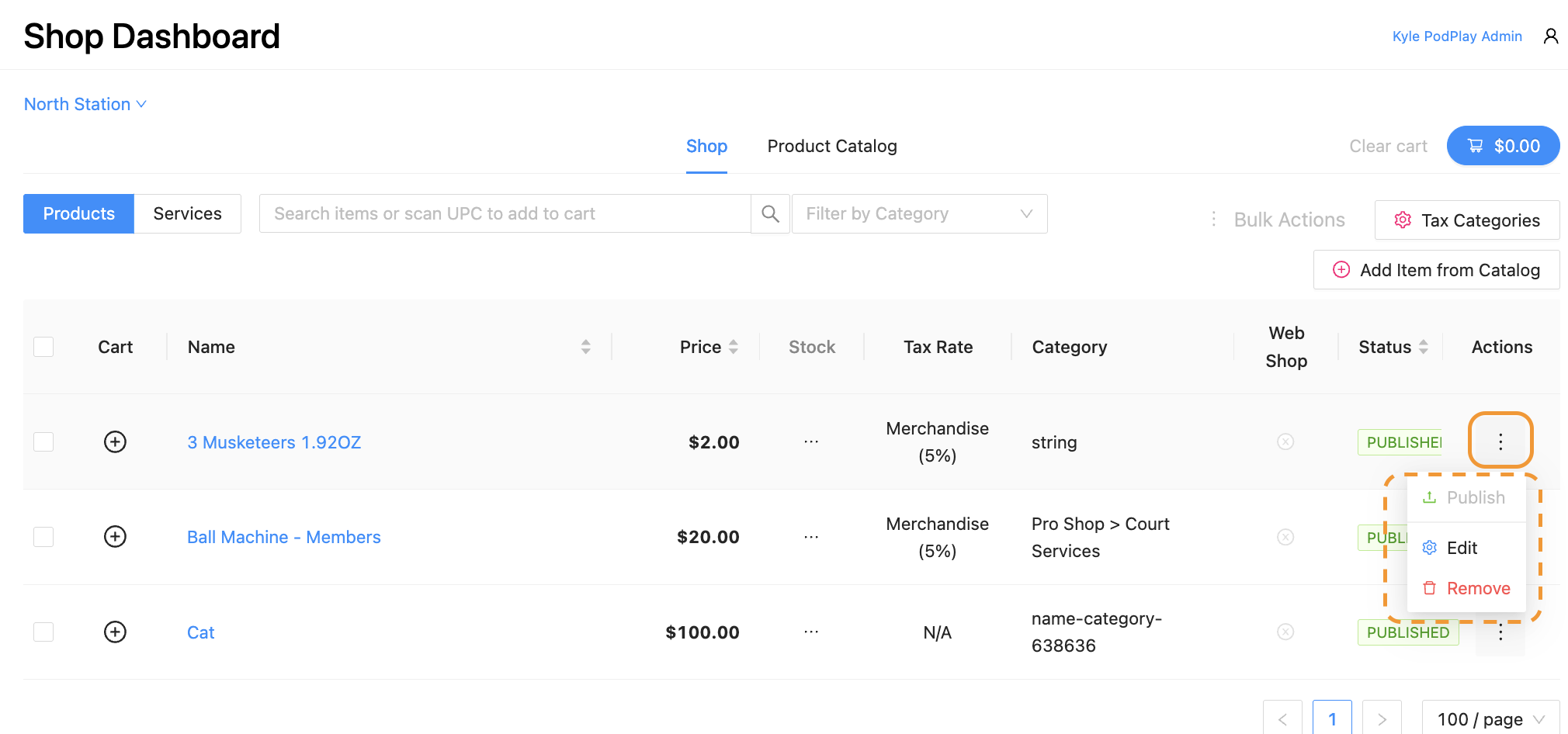
If you select Edit:
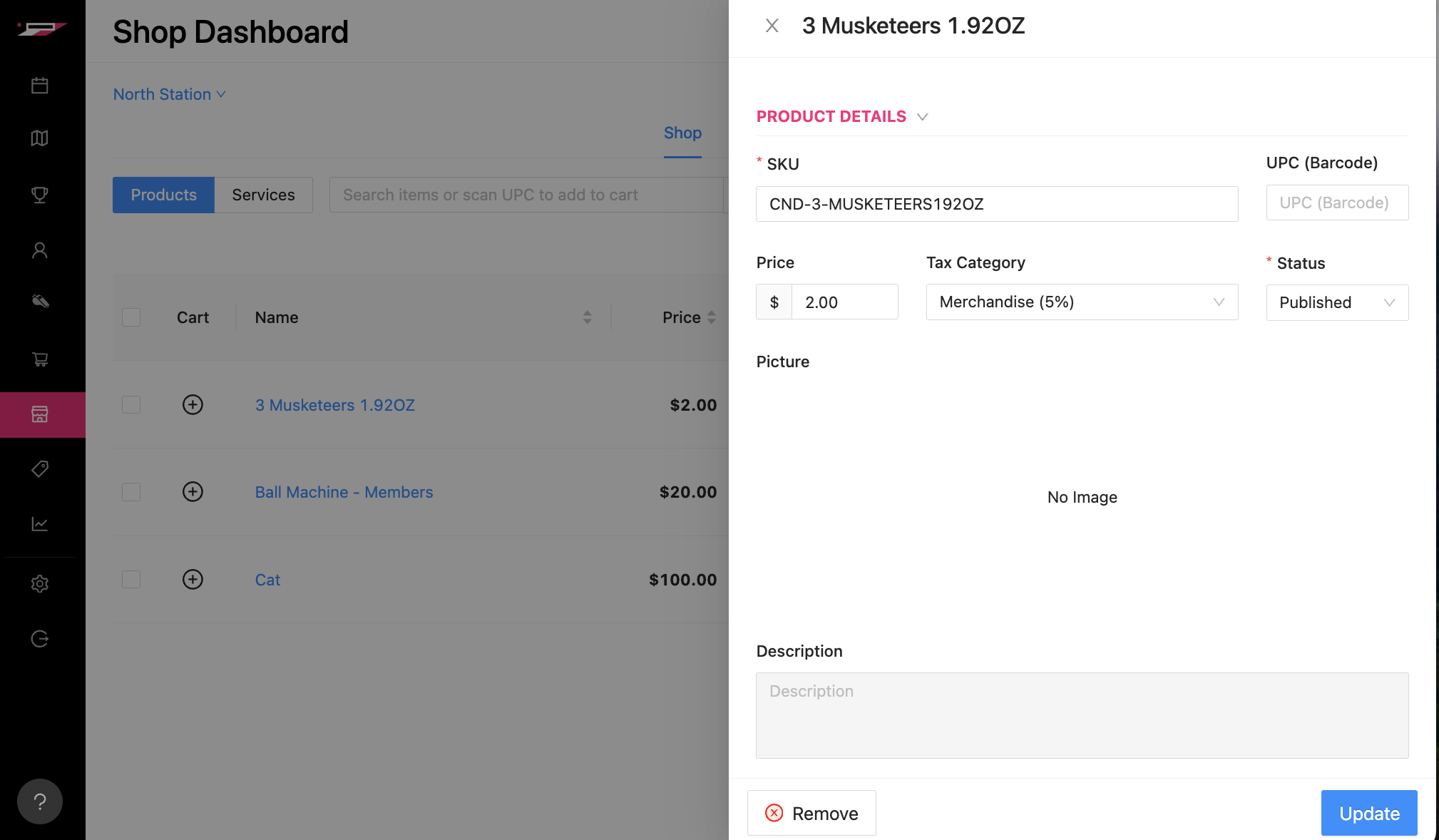
A side panel will appear and show
SKU - you don’t need to edit this as it is added in the Product Catalog, not the Shop
UPC (Barcode) - this can be edited for future scanning of a product
Price - the price of an individual product can be edited inside a Shop and it will not affect any other Location’s Shop with the same product
Tax Category - the Tax Category can be adjusted here
Status - the options to select from here are Draft, Published, or Archived
Published: the product can be added to a shopping cart and Charged to a Customer
Draft: the product is not yet available and your Club is planning to sell it soon
Archive: the product cannot be added to a shopping cart and is presumed to be no longer in use
Picture - this is added in the Product Catalog, not the Shop
Description - this is added in the Product Catalog
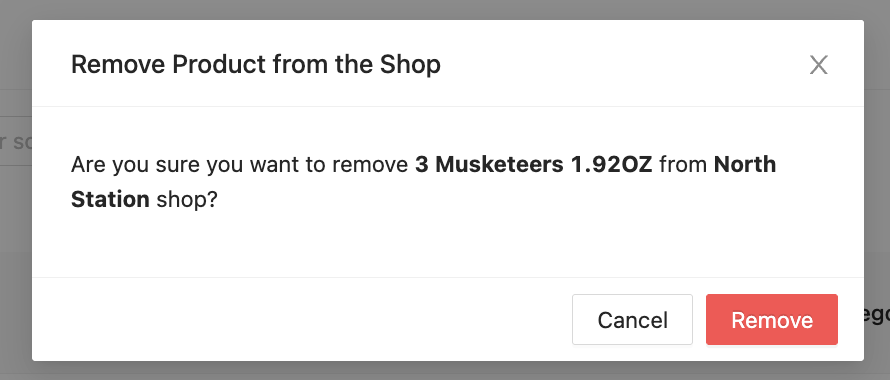
If you select Remove:
A new pop-up window will appear and ask: “Are you sure you want to remove [product name] from [Location]’s shop?”
Click on the red “Remove” button and the product will disappear from the Shop’s view
PLEASE NOTE: If you remove a product from your Shop, you remove the product from your view in the Shop. This does not delete the product from the Product Catalog. If the product is deleted from the Product Catalog, any data from previous Customer purchases will be deleted, too. Learn more about this in the article Delete from Product Catalog.
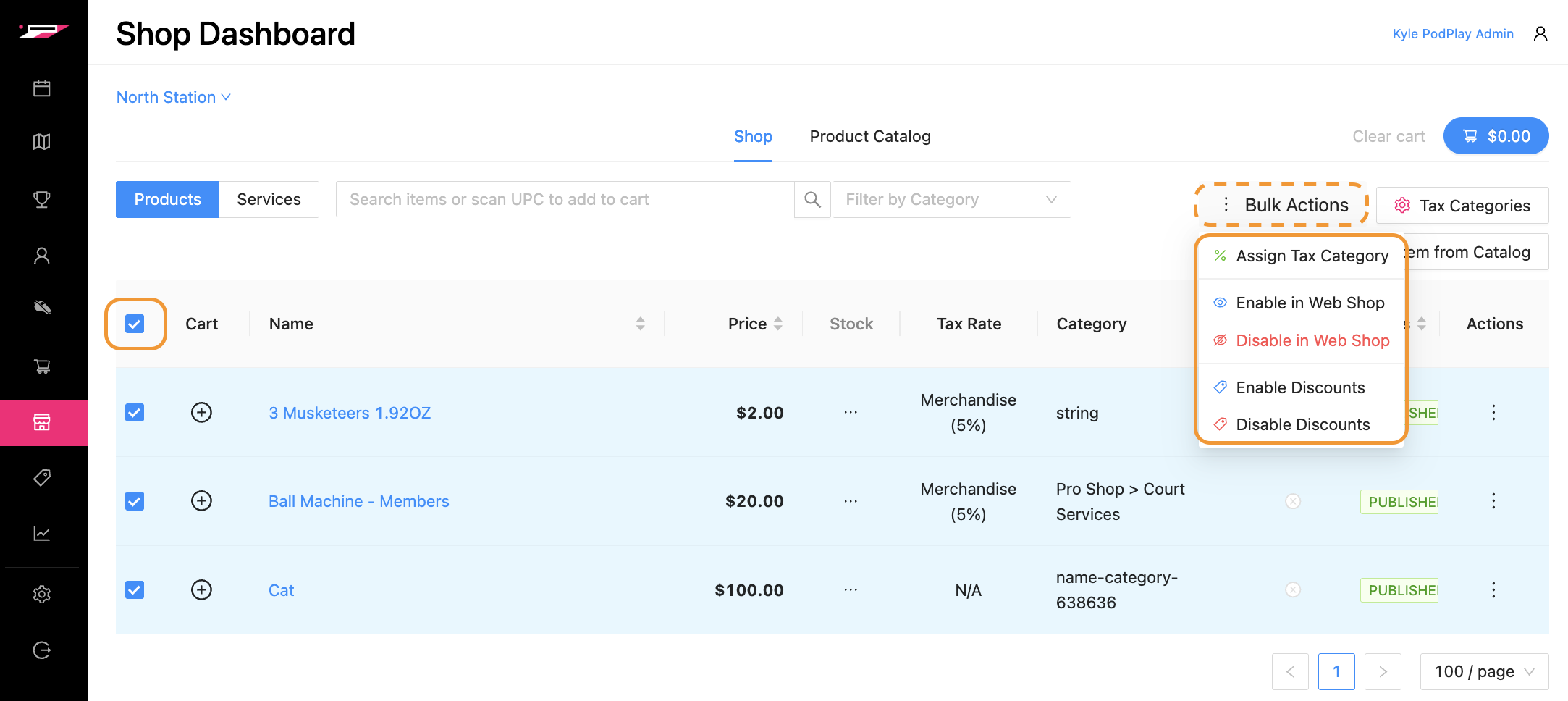
Bulk Actions on several products
When multiple items are selected, you can click on the Bulk Actions button near to the top right of the page. A dropdown will appear and show options to:
Enable in Web Shop (this is the public facing shop and is not available yet)
Disable in Web Shop (this is the public facing shop and is not available yet)
Enable Discounts (this is the public facing shop and is not available yet)
Disable Discounts (this is the public facing shop and is not available yet)