
Creating a Customer Profile
When a Customer wants to create a Profile, they will:
Navigate to your Web App or App
Type in their email and hit enter
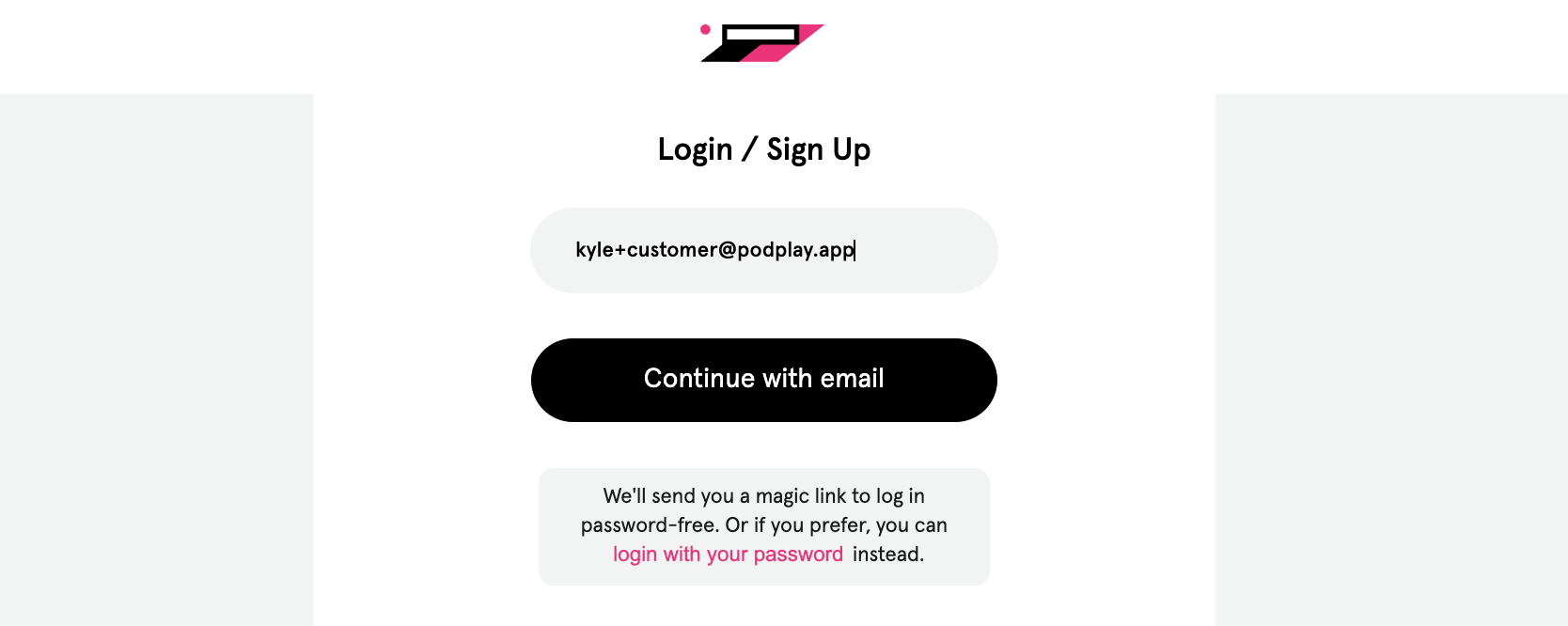
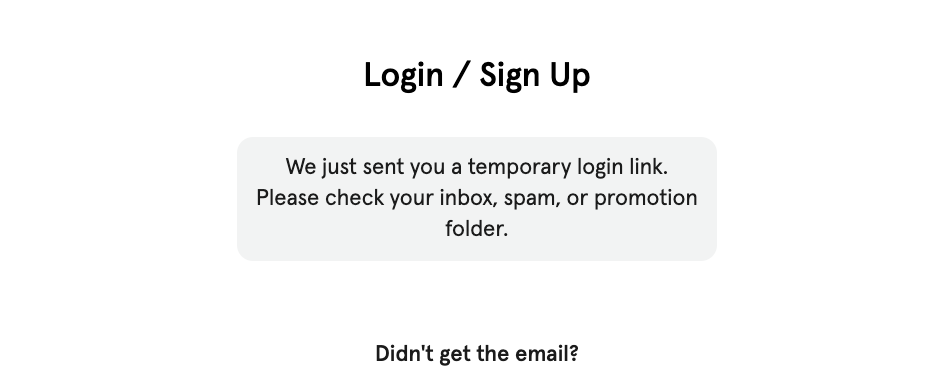
Notice the system is sending them an emailThis is the system verifying the Customer is a real person with a real email address
This is the system verifying the Customer is a real person with a real email address; much like MFA/2FA security systems
If your system is using One Time Passwords (OTP), the system will show that a 6-digit code has been sent to the Customer’s email address
Find the email inside their inbox (and move it into their inbox if the email landed in their spam folder)
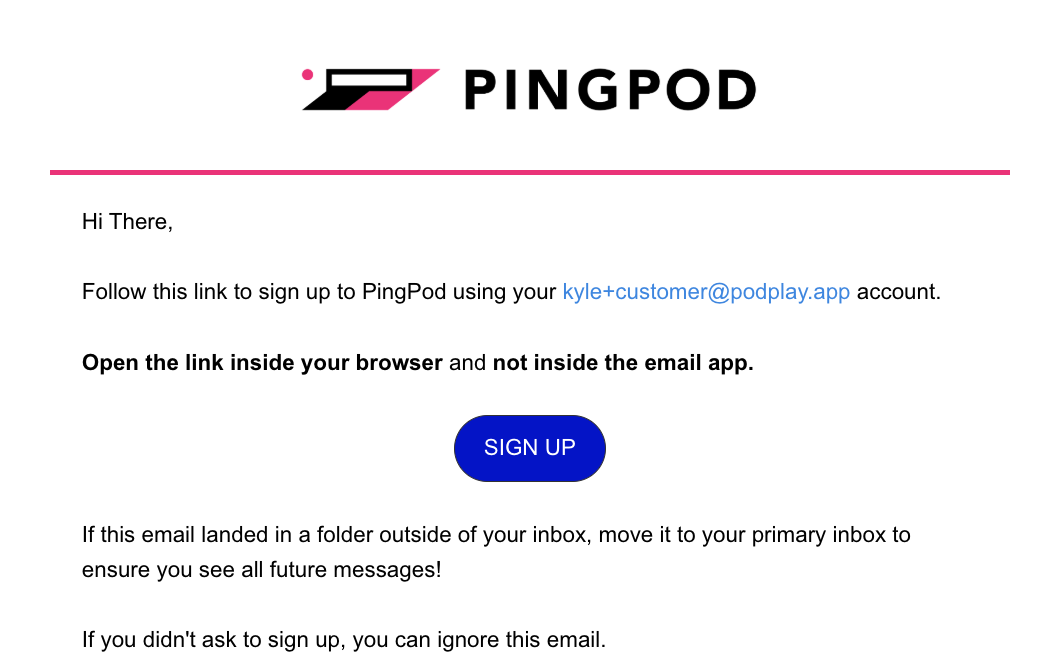
Click on the SIGN UP button
If your environment is using OTP, the Customer will copy the 6-digit code and add it to the Web App or App to finalize the login
Type in their first name, last name, and accept the Terms of Service and Privacy Policy

Accept the Liability Waiver (should your Club have one)
The Customer will land on the Account tab of the app, and can then begin to book Reservations, join Events, or purchase a Membership.
If the Customer wants to add their credit card, they can:
Click on the Account Info button at the top of the Account tab
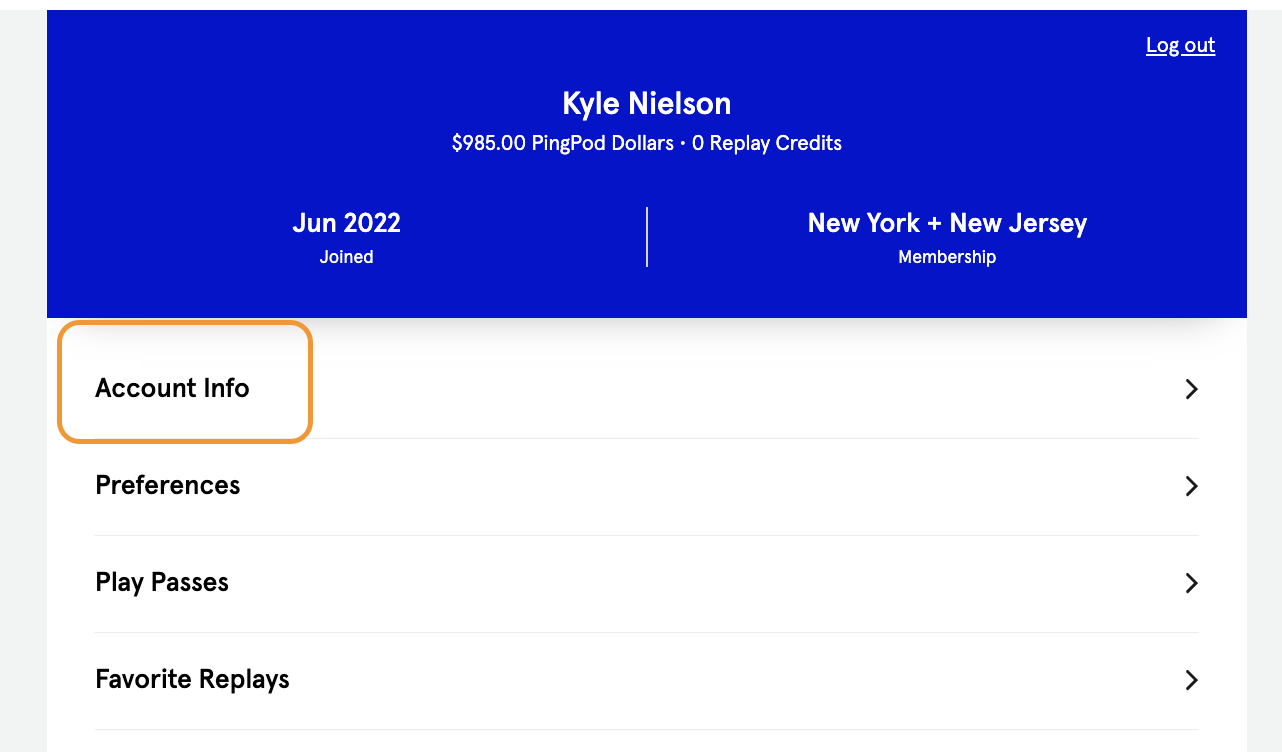
The Customer will then see their information, and can add their phone number and credit card
Please note:
If the Customer has any trouble signing up, they could be stuck in the Circular Signup Error.
This is resolved with the OTP style Sign-up/Sign in flow. Ask your PodPlay CSM to change this in your environment if you’re still using Magic Link.
If the Customer wants to create a password once they have followed the above steps and created a Profile, they can Set a Password.