Setting Up Community Chat
General Information and Best Practices
The Community Chat feature is $100/month on the Basic+ plan.
The Community Chat feature is included at no additional cost on the Pro or Autonomous plan.
The deep link to your Chat is "https://clubname.podplay.app/community/chat"
Customer Profiles older than 1 hour can see the Community Chat.
It’s a GOOD IDEA to start with fewer channels to create a snowball effect of building community.
It’s a GOOD IDEA to
Update your marketing website with a button:
“Connect With Other Players”
Using the link:
"https://clubname.podplay.app/community/chat"
Add copy below or above the button:
“New to the club? Sign Up for an account before joining our community”
Add a link to the “Sign Up” which redirects the Customer to create a Profile:
"https://clubname.podplay.app/login?loginMode=email"
Here is a drafted email to introduce Community Chat to your Customers.
Here is a drafted first message to send in the Community Chat to Customers.
You SHOULD NOT launch without having someone who is responsible for Chat (meaning they post a lot). They should post in the chat to actively nurture the community.
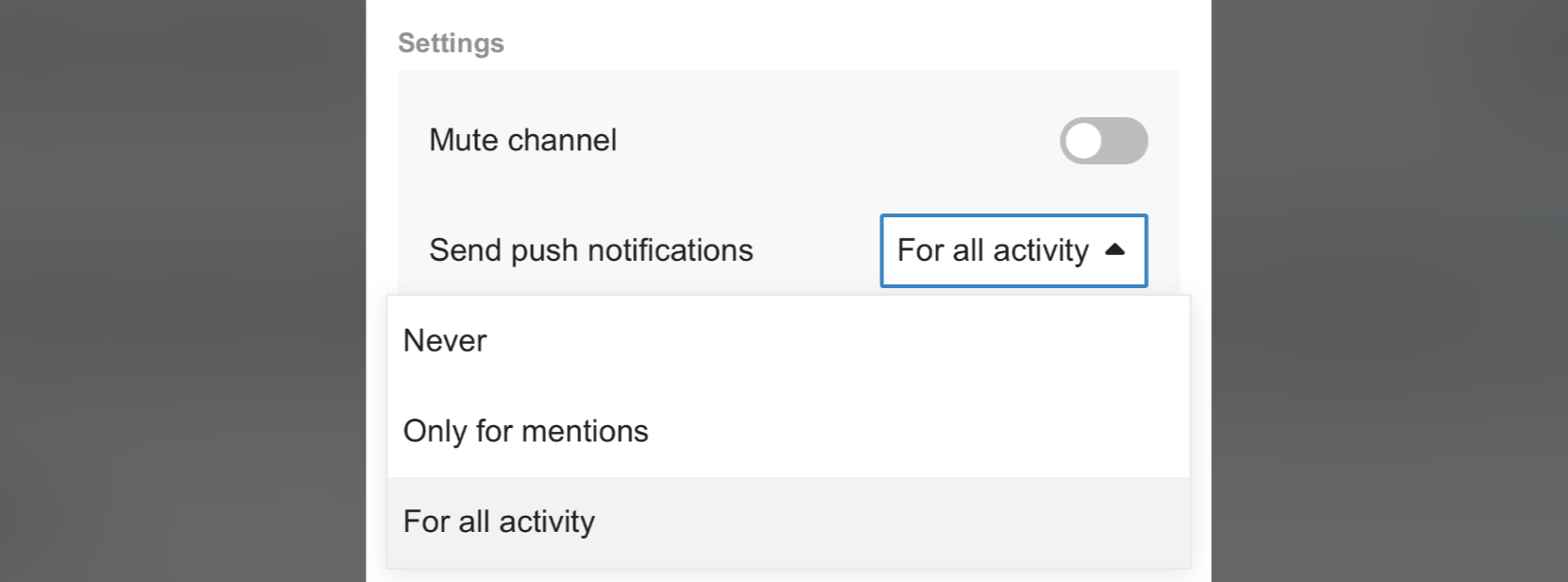
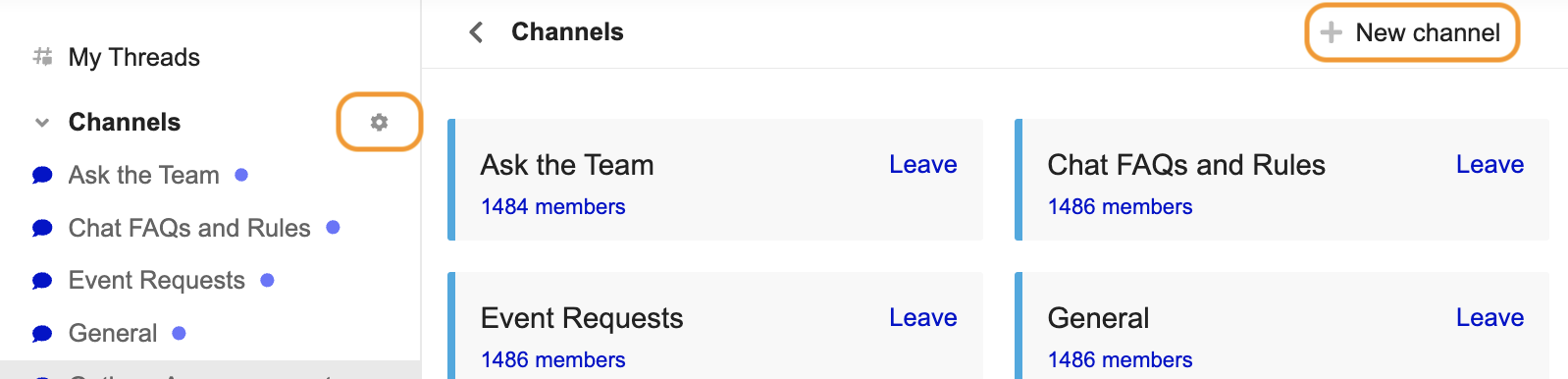
You SHOULD update the settings of the “Ask the Team” channel to have the push notification “For all activity” by clicking on the gear icon near the channel name.
In this way, the Staff will receive a notification when a Customer asks a question in this channel.
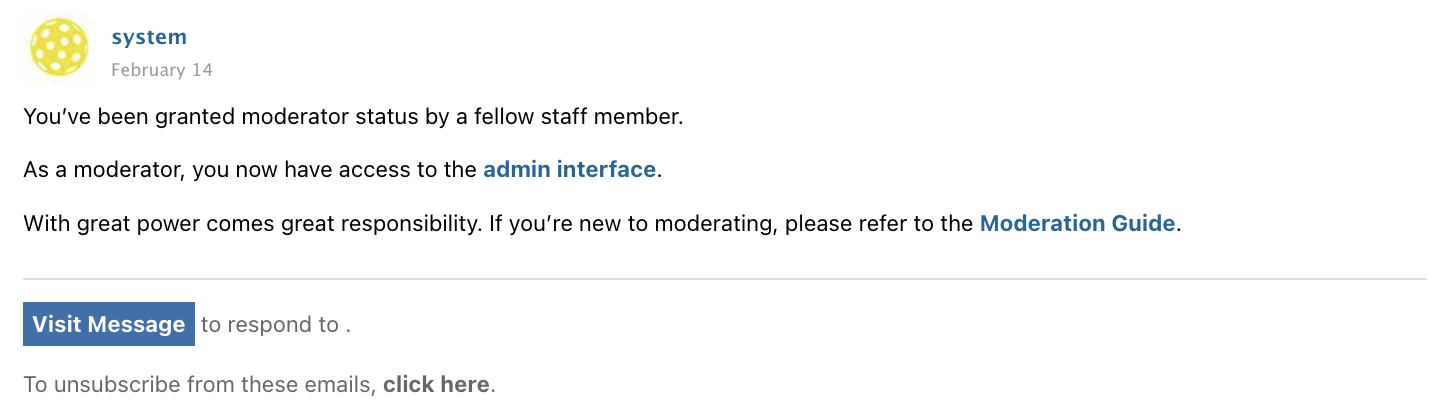
When an Admin is added as a Moderator, they receive this email:
Once an Admin is added as a Moderator, they will have the ability to create, delete, or edit channels.
Helping a Customer
The Chat feature is available for Customers to message other Customers, Coaches, and Club staff.
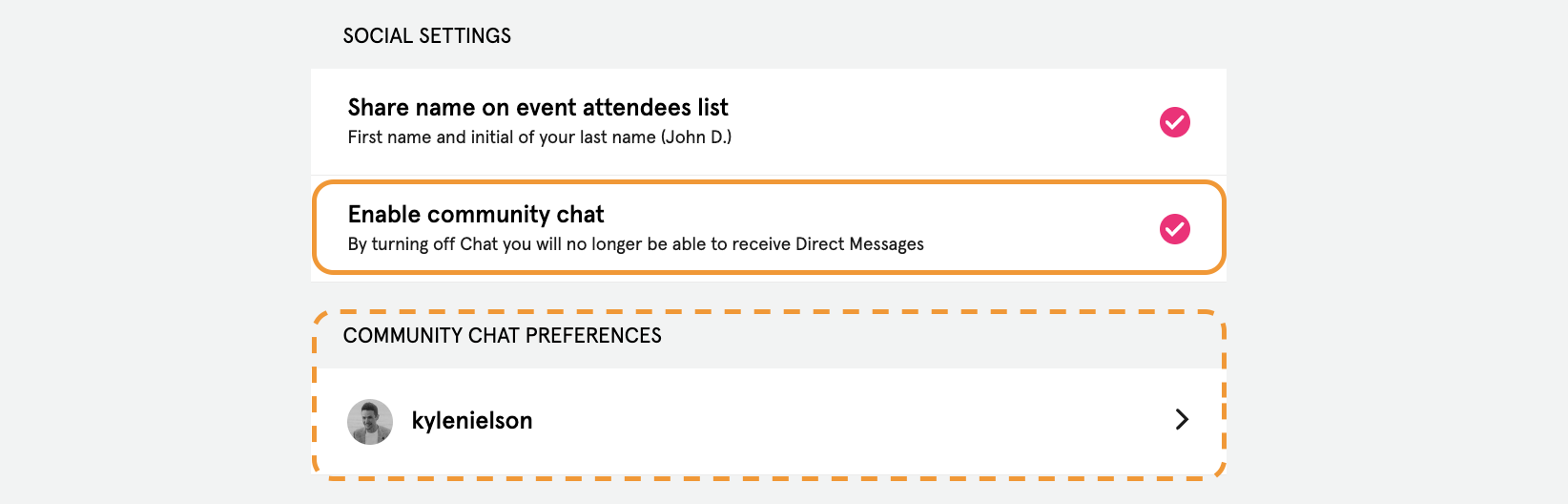
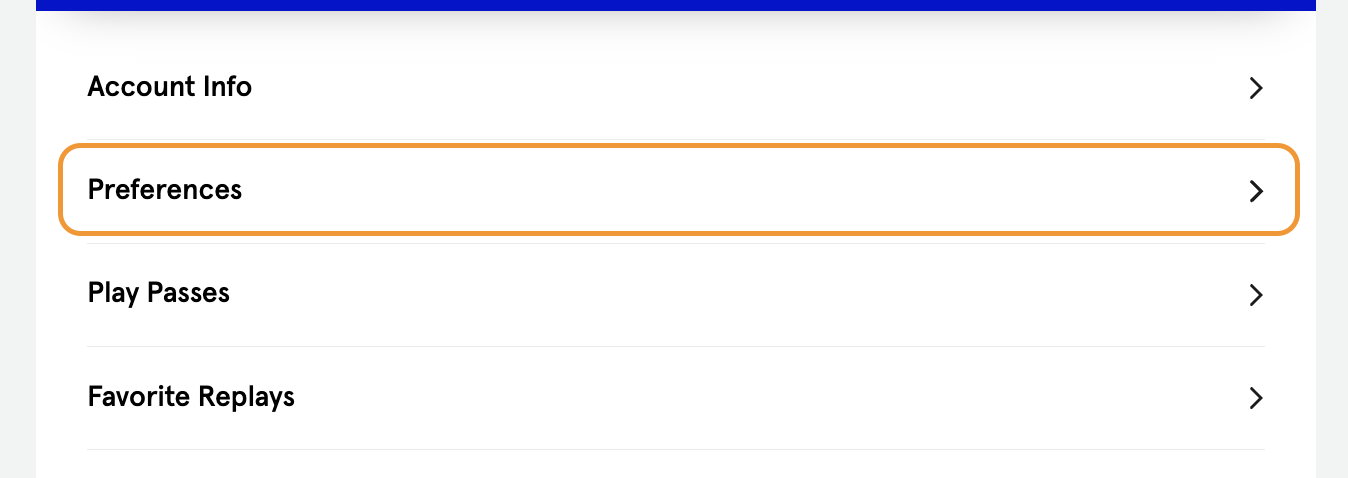
Customer can enable the Community Chat from within the Preferences button on the Account tab.
When a Customer enables the Community Chat feature, they will have the option to edit their Community Chat Preferences